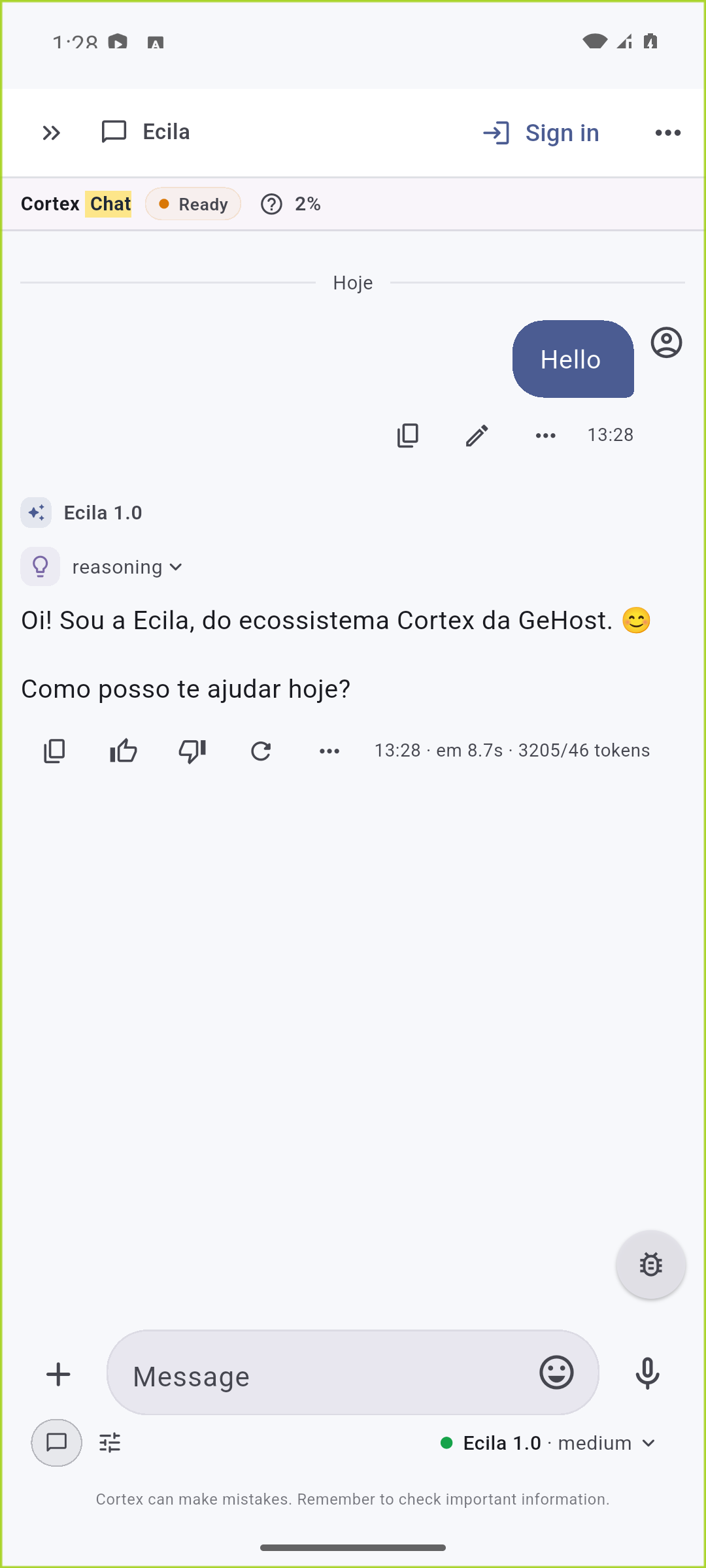
Português · English · 日本語

What's new in Cortex

One entry per published version, newest first.

Easier access to messages and controls

Version 6.75.518 · · Android, Windows, Linux

Easier access to messages and controls

Find conversations, memories and connections with tabs and lists that adapt to your screen.

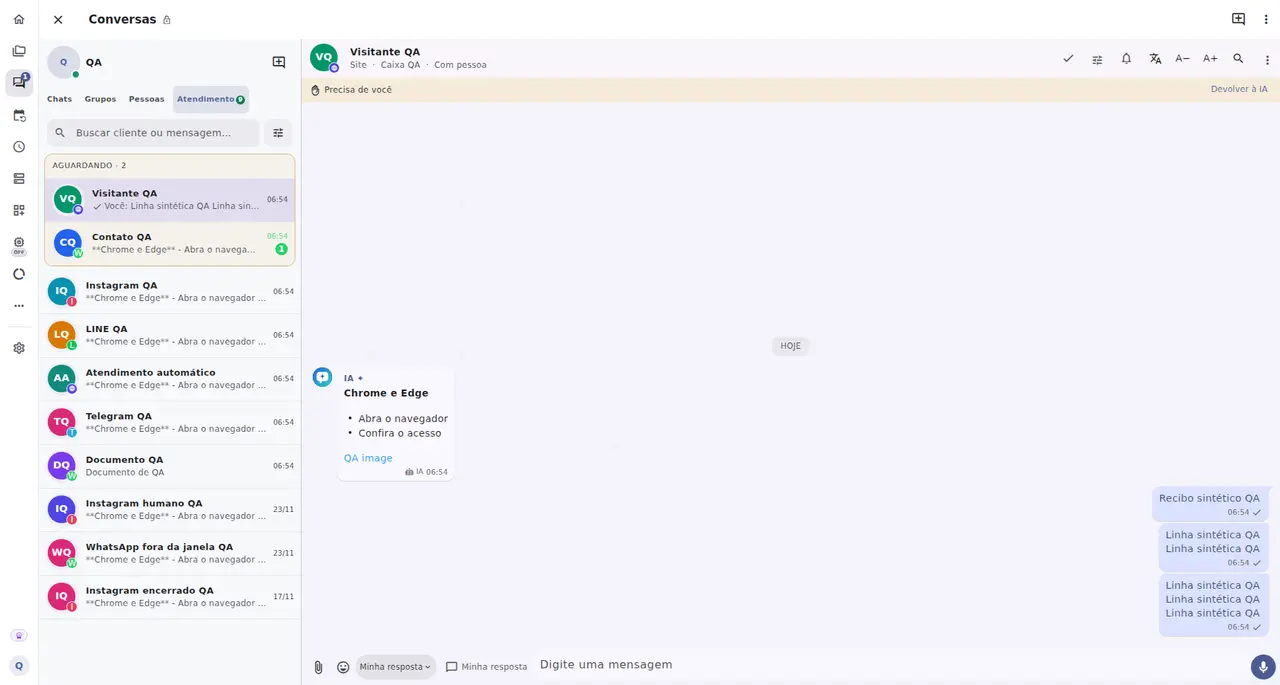
  • Messenger brings together conversations with people. Find notices and summaries in the AI chats area.
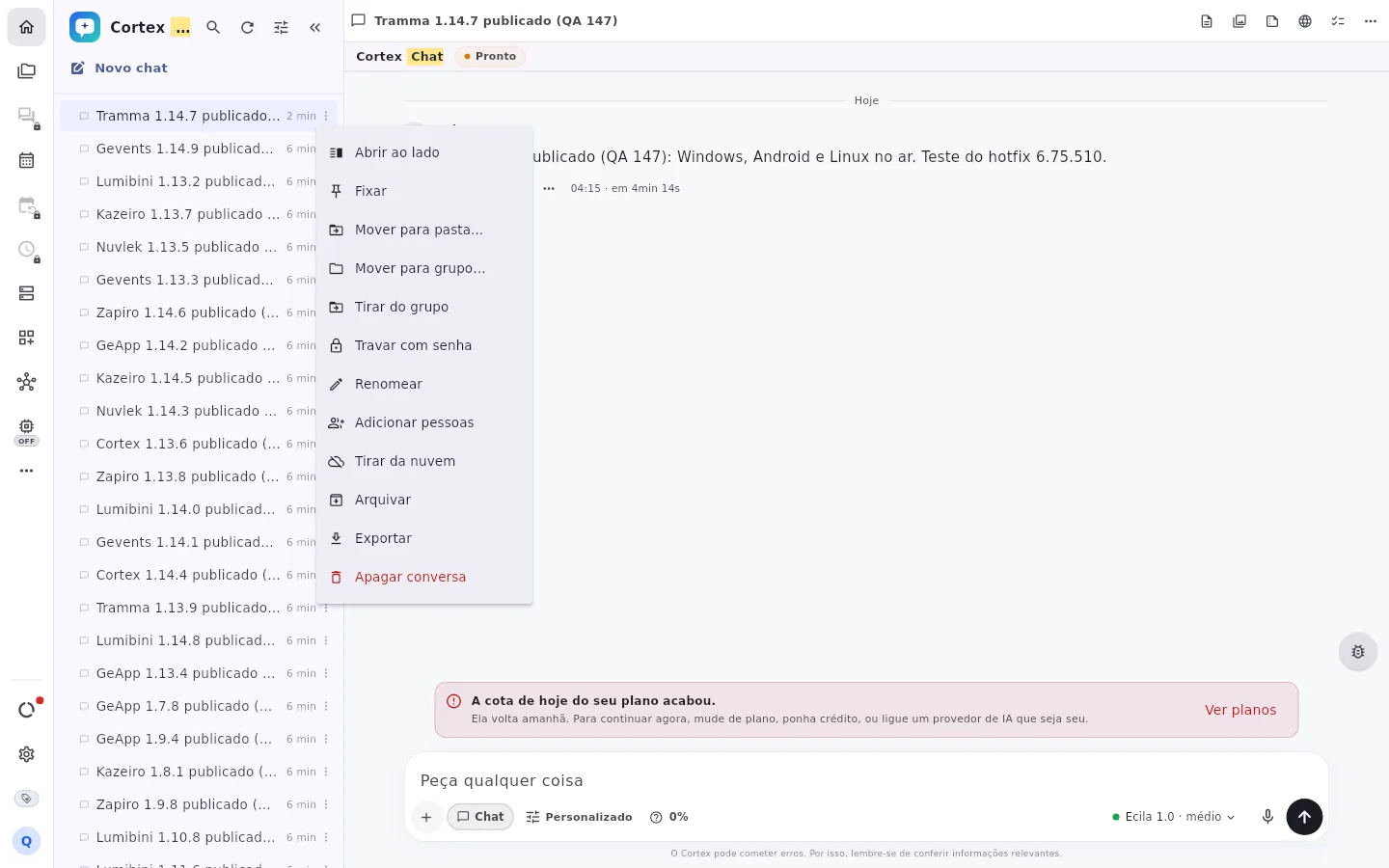
  • Open the conversation menu from the keyboard, by right-clicking or by pressing and holding.
  • Tabs, filters and controls adapt to your screen. Blocked tasks appear in Tasks.
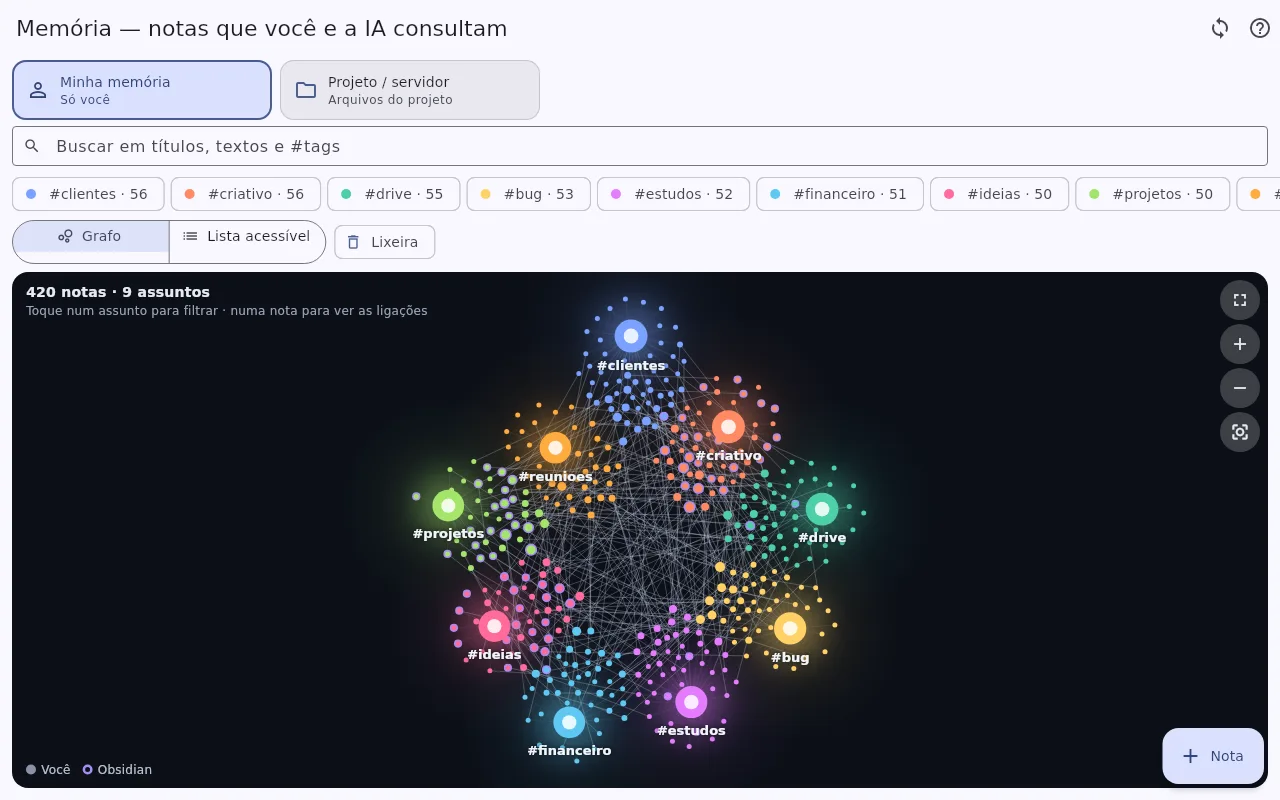
  • See account memories, Cortex notes and synced Obsidian notes in the graph.
  • Find devices and workplaces with search, filters and scrollable details.
Memory graph and Obsidian

Version 6.75.511 · · Android, Windows, Linux, Web

Memory graph and Obsidian

Your notes become a live graph and sync with Obsidian; the Studio turns agents on, off and copies them.

  • Memory as a live graph: topics as dots, notes around them, instant search and filters.
  • Sync with Obsidian finds your vaults and mirrors the notes with your permission.
  • Studio: turn agents on your connected machines on and off, with confirmation and Undo.
  • Studio: copy an agent to another machine or to your account; passwords and keys are blocked.
  • Event invites in chat with Accept, Maybe and Decline; accepting adds it to your Calendar.
Groups open instantly, plus Archive

Version 6.75.510 · · Android, Windows, Linux

Groups open instantly, plus Archive

Chats inside groups open on tap, and old notices go to Archived.

  • Tapping a chat inside a large group opens it right away again.
  • Lighter list: fewer downloads and redraws at once.
  • Archive from the chat menu and "Archive old ones" from the group menu.
  • Automatic notices idle for 2 days move to Archived by themselves.
  • Archived has search and Unarchive; nothing is deleted.
Chats became a messenger

Version 6.75.509 · · Android, Windows, Linux

Chats became a messenger

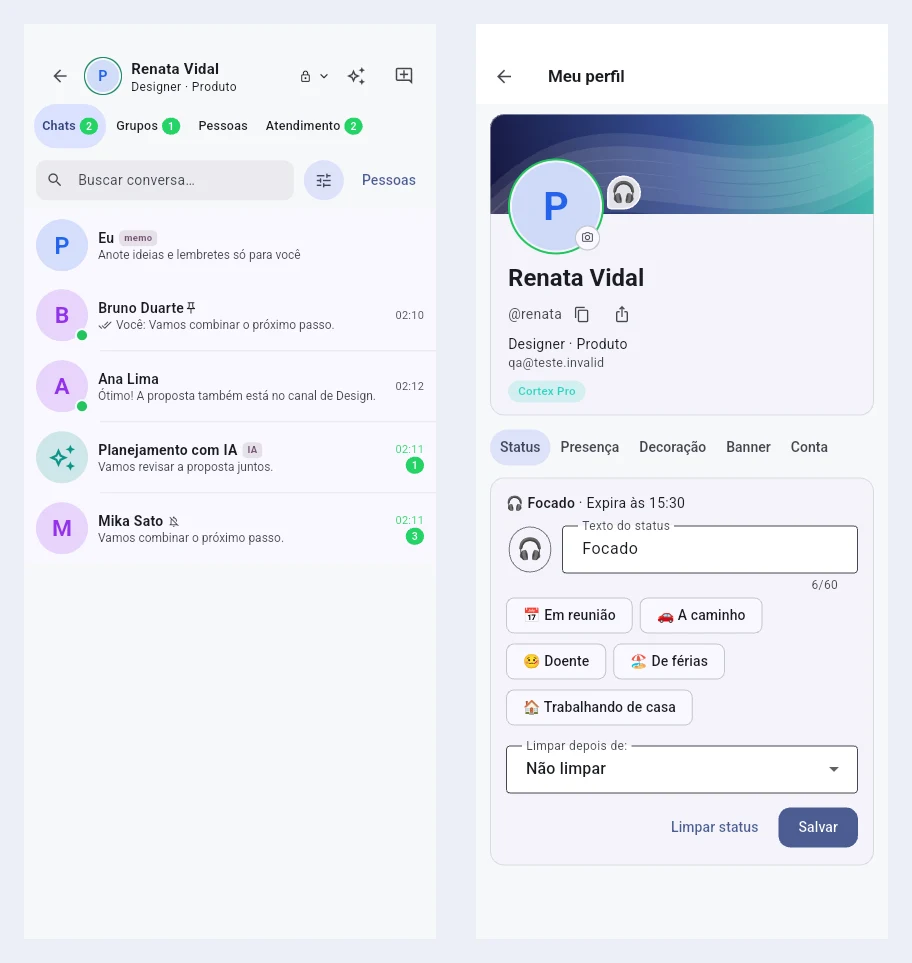
Chats with people, groups and AI in one place, plus a profile with status and cover.

  • Chats became a messenger: Chats, Groups, People and Requests, with your AI chats.
  • Bubbles, quotes, translation, bigger text and search in the chat.
  • My profile with cover, emoji status, presence and frames.
  • Add friends by link, code or email and share with a friend or group.
  • Mobile: avatar and account on the left rail.
  • Create an event from a message; attachments show the right size.
Organized sidebar and AI rules

Version 6.75.508 · · Android, Windows, Linux

Organized sidebar and AI rules

Connections and Groups become sections that open and close, plus a new AI rules screen.

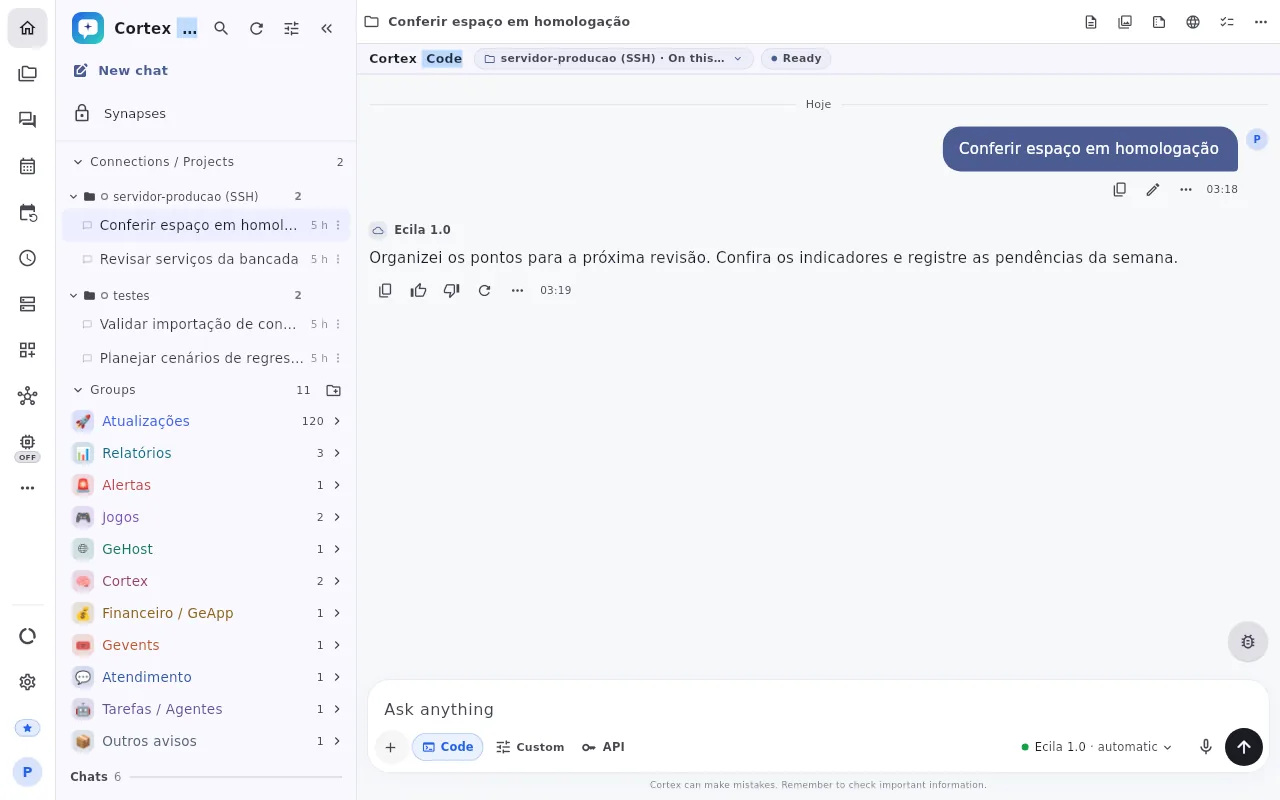
  • Sidebar: Connections / Projects, Groups, then your other chats; each section opens and closes.
  • Slimmer group rows with an icon or image, 50 chats at a time with "Show more".
  • "Add to group" and "Remove from group" in the chat menu; drag on a computer.
  • New AI rules screen: finds and organizes AI rules on your computer and connected remote computers.
  • Studio: 14 ready-made agents, agents already running on remote computers (SSH), filters and packs.
  • Tapping a notification opens the chat right away; pull the list to refresh.
Calendar in Cortex

Version 6.75.507 · · Android, Windows, Linux

Calendar in Cortex

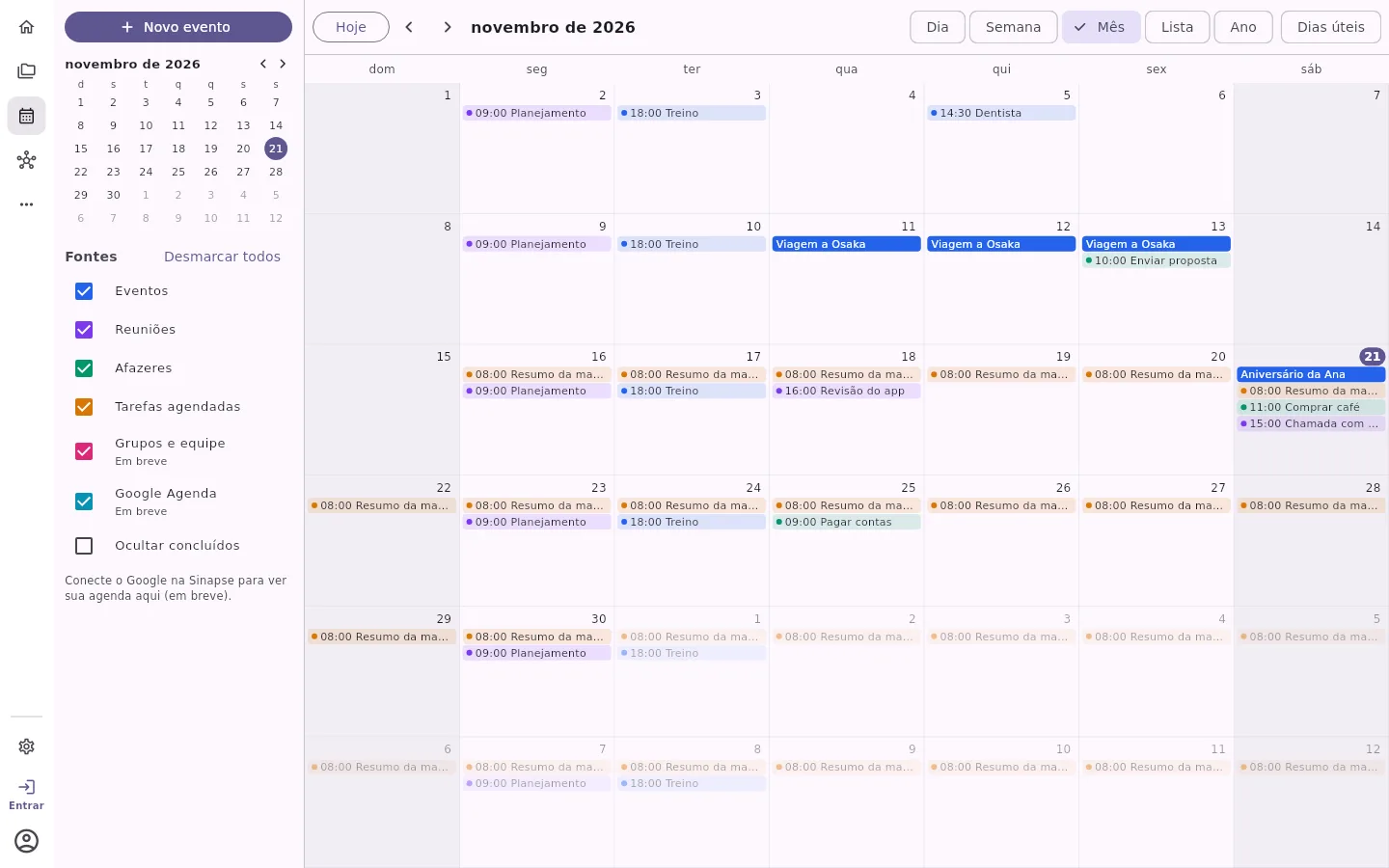
A calendar on the rail, with day, week, month, list and year.

  • New Calendar on the rail: day, week, month, list and year, with a mini calendar.
  • Color-coded events, meetings and to-dos; scheduled tasks show up too.
  • Drag an event to another day to reschedule.
More compact Conversations filters

Version 6.75.506 · · Android, Windows, Linux

More compact Conversations filters

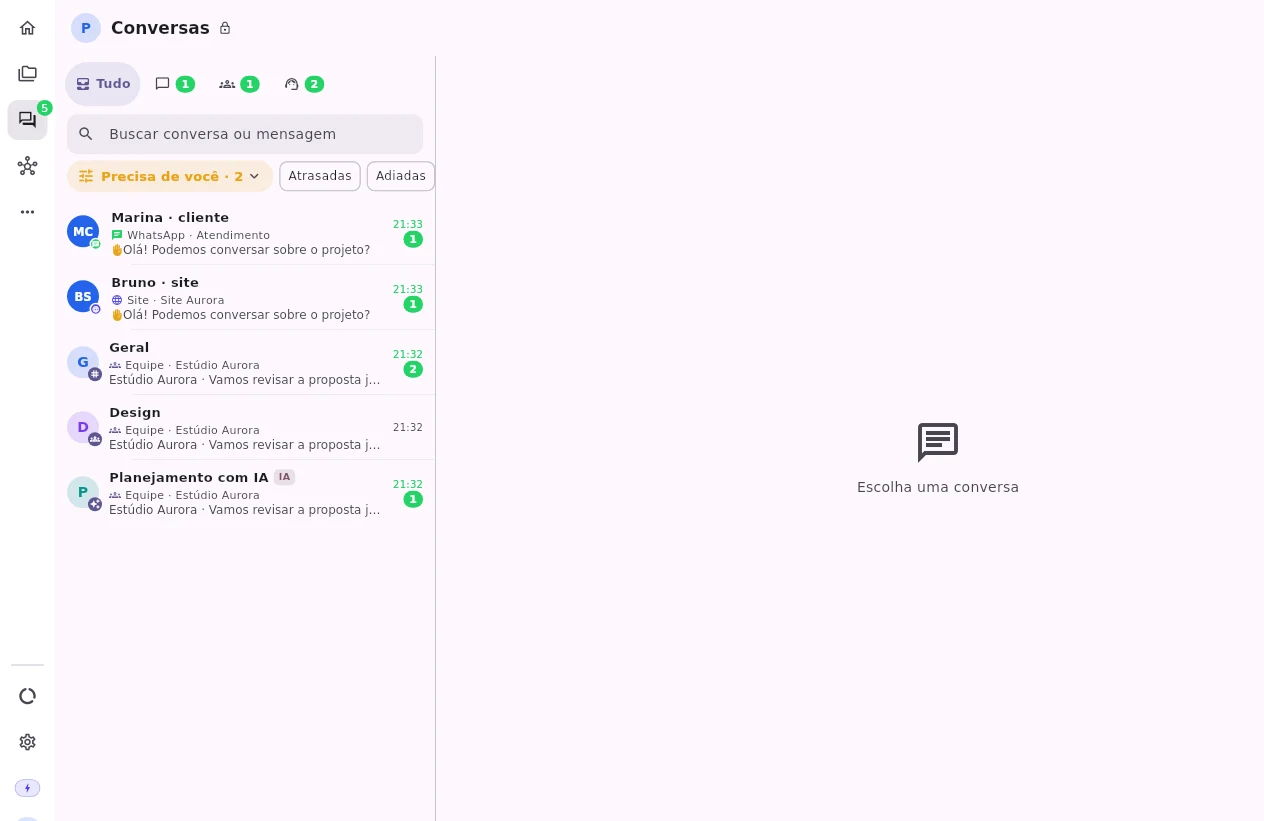
Filters now fit on a single line with small chips.

  • In Conversations, Needs you, Overdue, Snoozed, Important and labels sit on one left-aligned line that scrolls sideways.
  • With large text on phones, filters no longer wrap onto two centered lines.
Follow the plan as the chat responds

Version 6.75.505 · · Android, Windows, Linux

Follow the plan as the chat responds

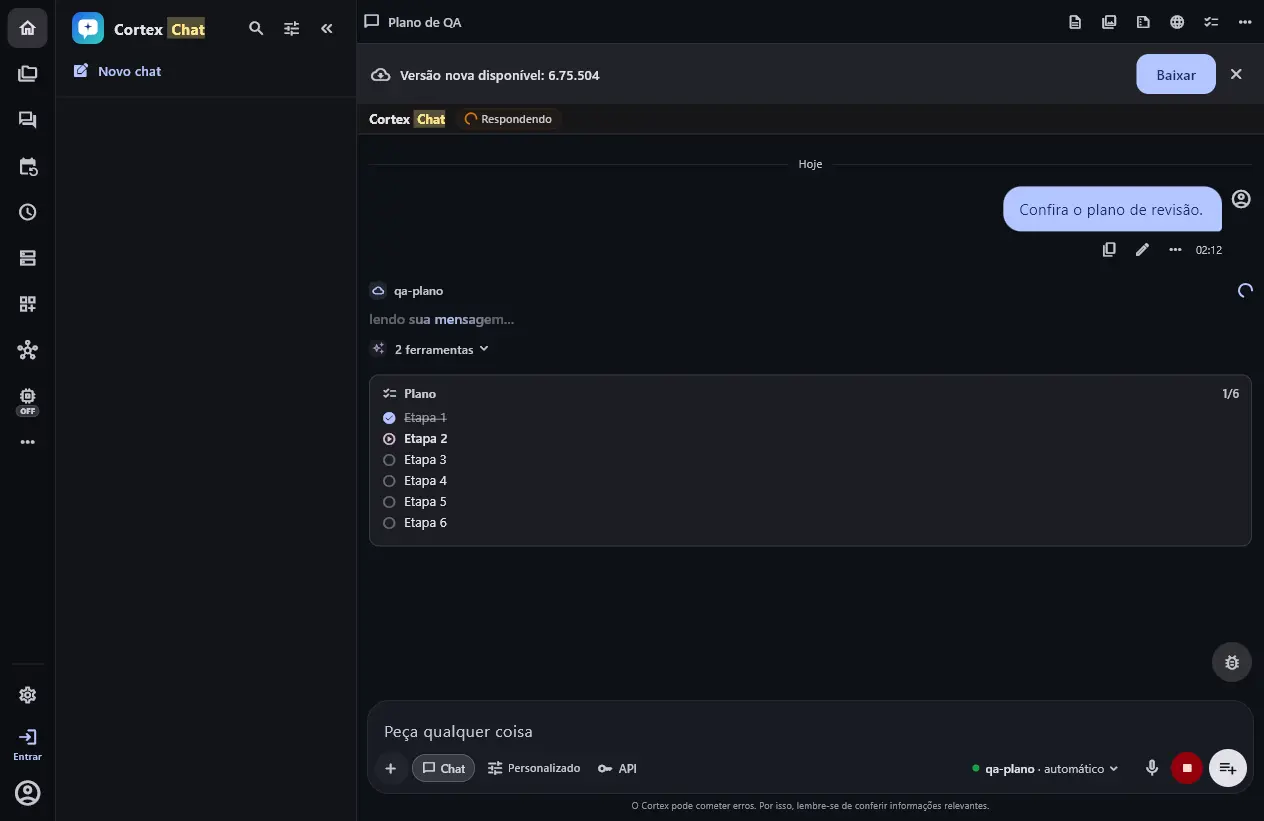
Plan progress shows up while Cortex is responding.

  • The plan counter follows confirmed steps while Cortex is still responding, including in split view.
  • If a plan update fails, the card keeps the last confirmed progress.
Studio, one place for chats and more

Version 6.75.504 · · Android, Windows, Linux

Studio, one place for chats and more

Agents on a board, chats on one screen, and more.

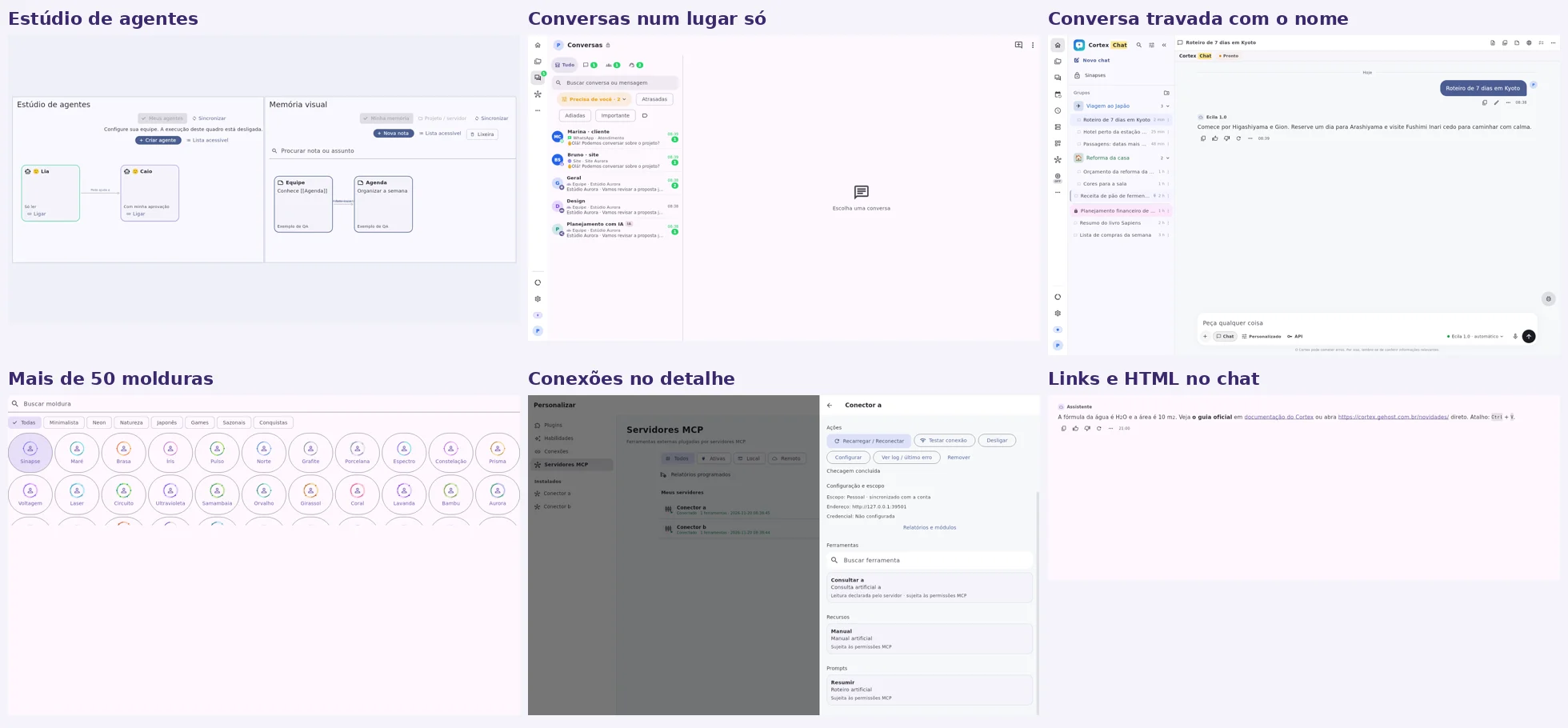
  • Agent studio on a board and visual memory with connected notes.
  • Messages and Team on one screen, with tabs and filters.
  • Locked chats show their title with a lock; content stays hidden.
  • 50+ avatar frames that arrive without an app update.
  • Connections in detail: reload and test one at a time.
  • Fixes: links without "OBJ", subscript and bold in chat, animated avatar.
Emails, archives and site report

Version 6.75.501 · · Android, Windows, Linux

Emails, archives and site report

Emails and archives open for real in the chat, and the site report now has charts.

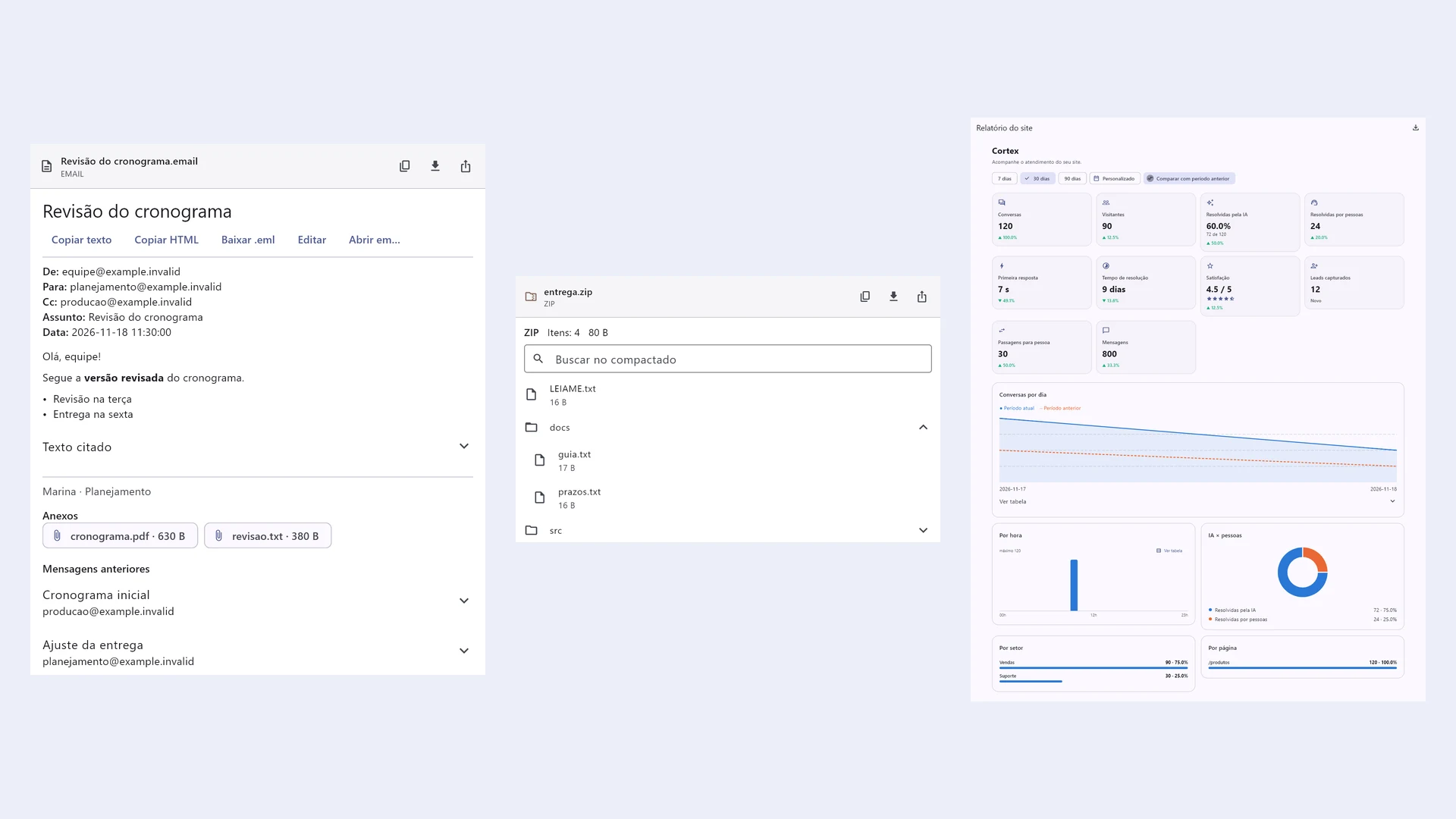
  • Cortex emails look like real emails, with attachments and thread; open in Gmail, Outlook or download the .eml.
  • Zip and tar files open next to the conversation: browse folders and extract only what you need.
  • Code snippets open in their own view, with line numbers and colors.
  • Site report with key metrics, comparison with the previous period and charts by day, hour, department and page.
  • Pick the period on the calendar; readable times and CSV with counts only.
  • Fixes: folder picker on Android and diagnostics for freezes, pauses and tasks.
Frames for your avatar

Version 6.75.500 · · Android, Windows, Linux

Frames for your avatar

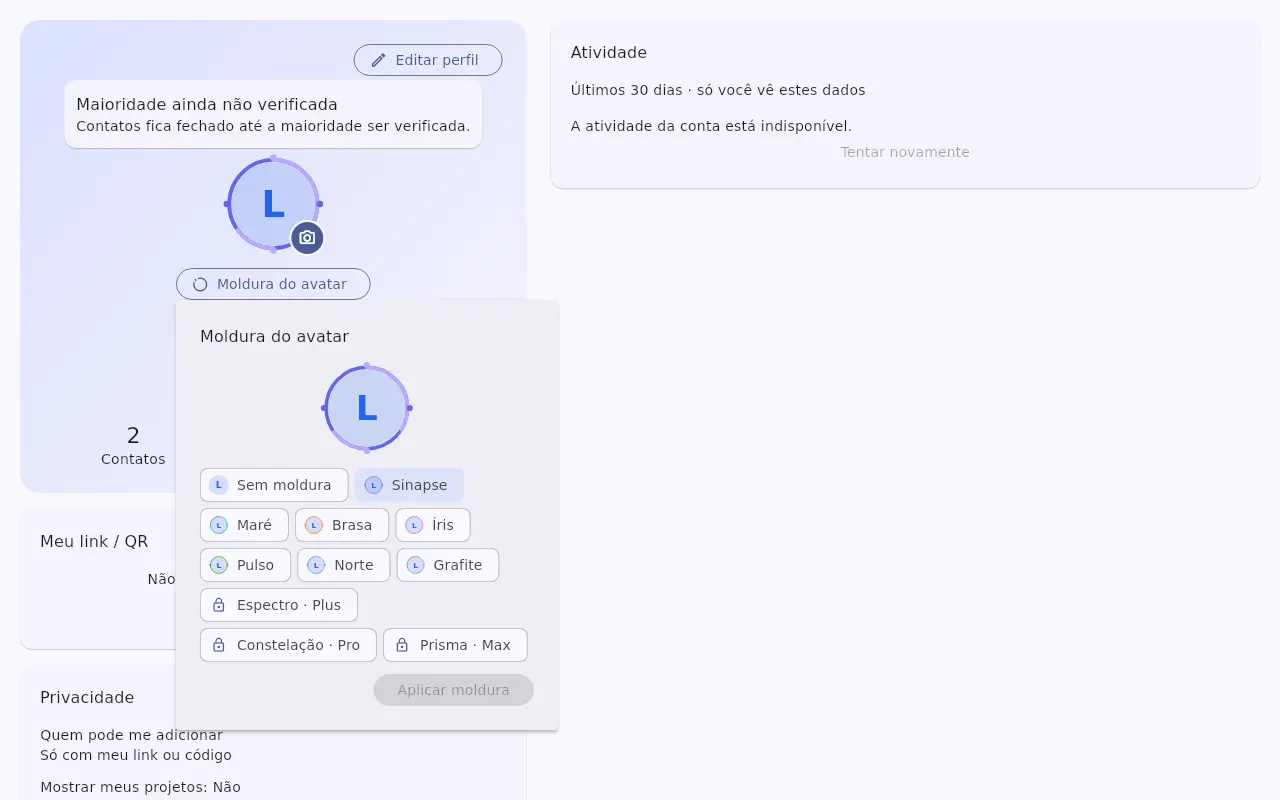
Choose a frame in My profile and preview it before applying.

  • Choose a frame in My profile and preview it before applying.
  • Your frame appears with your photo in People, Teams, and shared chats.
  • Seven styles are available to everyone. Plus, Pro, and Max unlock additional styles.
Charts right in the chat

Version 6.75.499 · · Android, Windows, Linux

Charts right in the chat

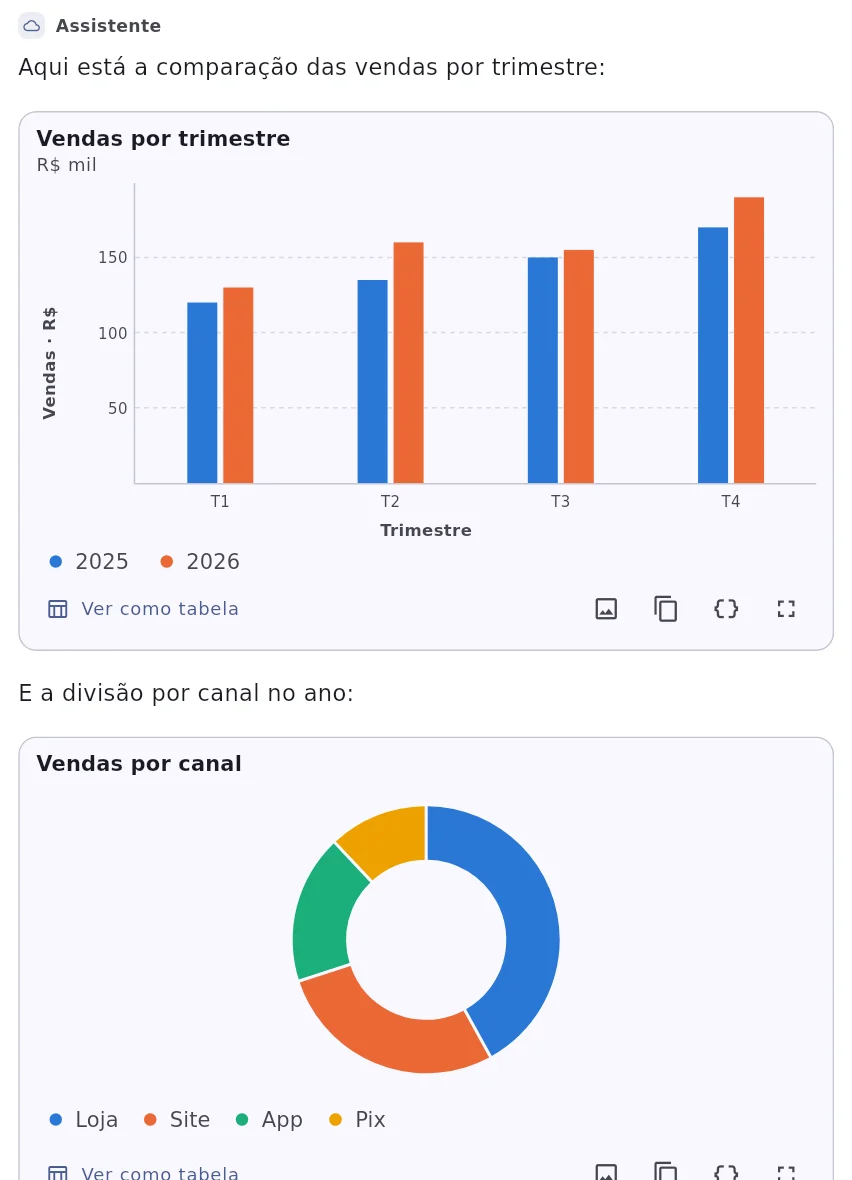
Ask for a chart and it shows up in the conversation: columns, lines, pie, KPIs and more.

  • Columns, bars, line, area, pie, donut, scatter, KPI, heatmap and table, in the app and on the Web.
  • Tap or hover to see the value, toggle series in the legend and view the data as a table.
  • Export as PNG, copy as CSV or JSON, and open it full screen.
  • Live: a chart linked to a tool in the conversation updates on its own once you turn it on, with pause.
Conversation groups and password lock

Version 6.75.498 · · Android, Windows, Linux

Conversation groups and password lock

Keep chats on the same topic in groups that always stay at the top and protect what is yours with a password.

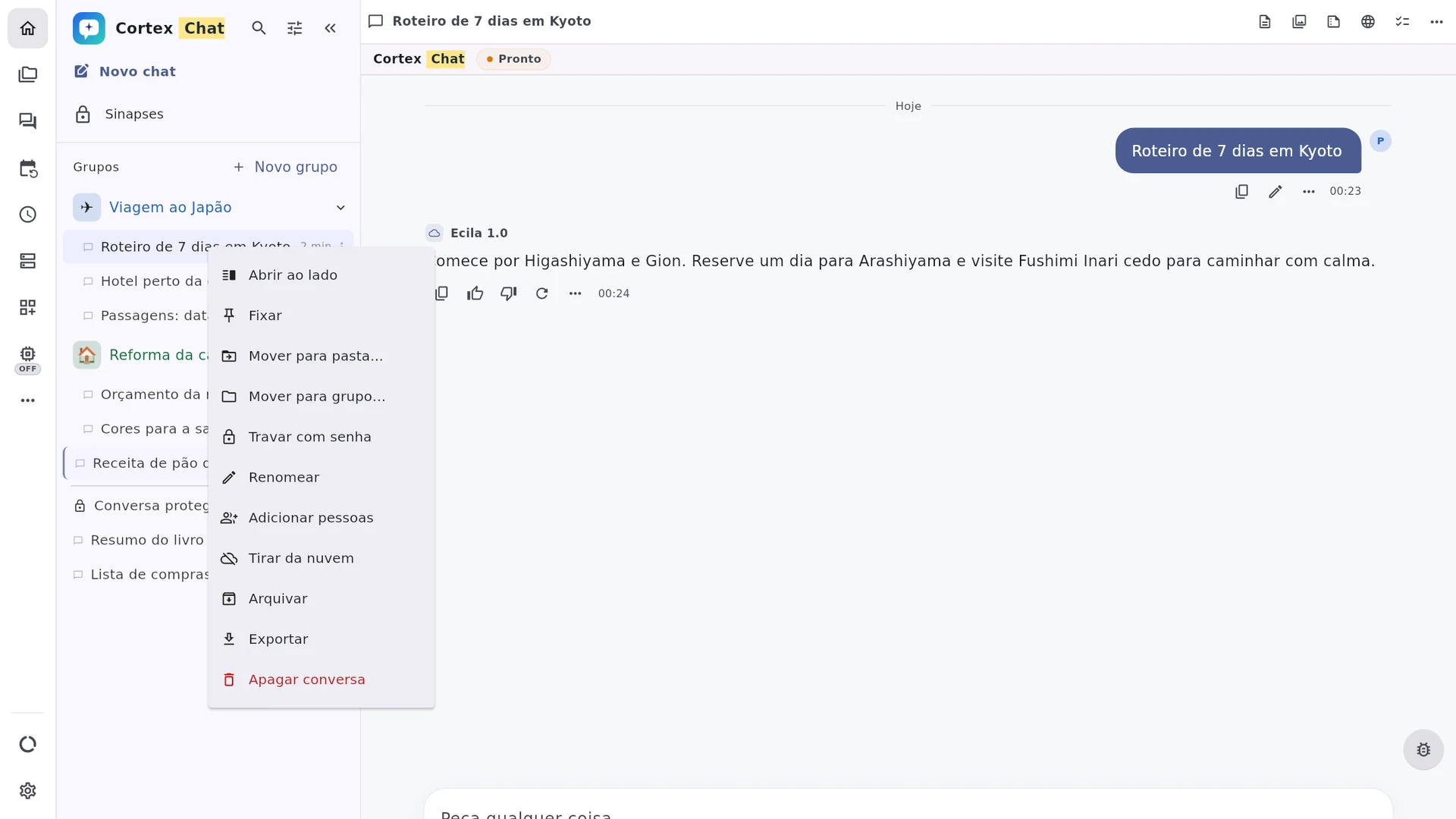
  • Create groups with a name, an emoji or icon and a color. They always stay at the top, in the order you drag them.
  • Right-click a conversation (long press on the phone): Move to group, Lock with password, Unlock.
  • A locked conversation shows as “Protected conversation”: its content does not appear in the list, search or notifications.
  • Unlock for 5 min, 15 min, 1 hour or until you close the app. “Lock now” closes it right away.
  • Share a group with a person or your team, read-only or read and chat.
  • Forgot the password? Remove the lock by verifying your account (password or signing in again with Google, Apple or Facebook). No conversation is erased.
Updates that show each version

Version 6.75.497 · · Android, Windows, Linux

Updates that show each version

The updates screen shows the image, title and everything that changes, with the history as a timeline.

  • The new version is highlighted with an image of what changed, its title and the main changes.
  • The button shows each step — download, verify and install — with the download size and estimated time.
  • See all changes opens the details: images that zoom on tap, the full list, platforms, date and a link to the website.
  • The history is now a timeline with an image for each version, a platform filter and the Installed badge.
  • The what's new notice after updating and the website's updates page share the same look.
Always on the newest models

Version 6.75.496 · · Android, Windows, Linux

Always on the newest models

Your account picker shows only the current generation, and older conversations move to the new model.

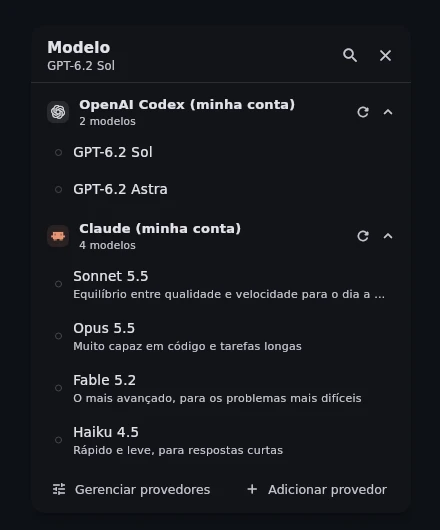
  • On desktop, your own accounts show only the current model generation, such as Sol 6.2, Astra 6.2 and Fable 5.2.
  • Conversations and preferences on an older model move to its successor in the same line on their own, with a short notice.
  • If your account's client is still old, Cortex shows the model that actually answered and offers to update it.
A livelier, leaner Synapse

Version 6.75.494 · · Android, Windows, Linux

A livelier, leaner Synapse

Full access applies to Synapses, the mascot reacts and details are compact.

  • Full access now applies to Synapses too. Reads follow your selected policy and Always allow this command is remembered.
  • Your Synapse reacts to actions and affection with expressions and gentle movement, respecting reduced motion.
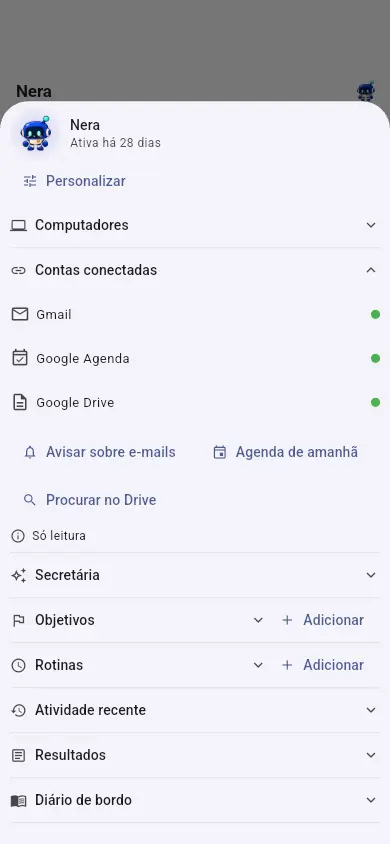
  • Synapse details are more compact, with a smaller portrait and sections that remember how you left them.
Interrupted tasks, clearer

Version 6.75.493 · · Android, Windows, Linux

Interrupted tasks, clearer

The app keeps the reason when a task is interrupted and never repeats commands on its own.

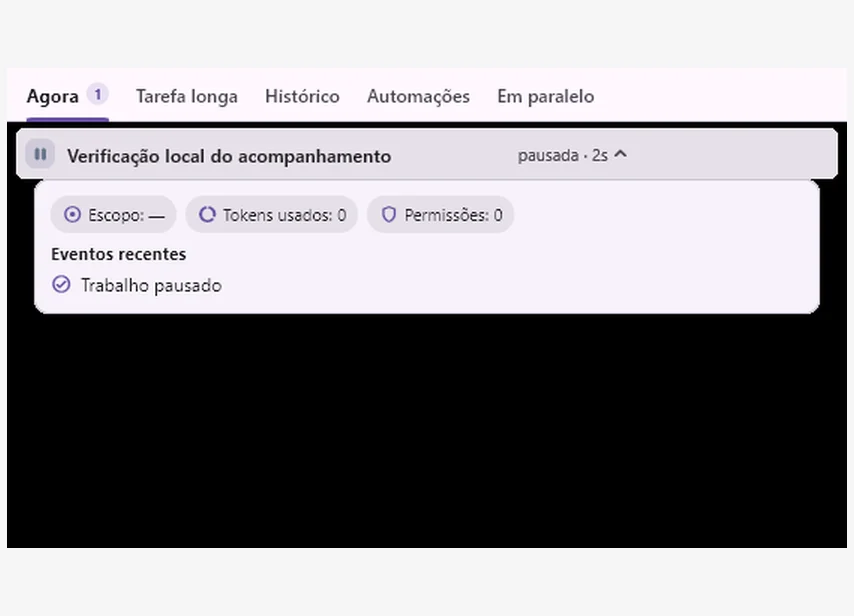
  • If a task is stopped or hits the computer's resource limit, the app keeps the reason and still avoids repeating commands.
  • When a command's result could not be confirmed, the app records what happened on this device and does not repeat it on its own.
Images show up right away

Version 6.75.492 · · Android, Windows, Linux

Images show up right away

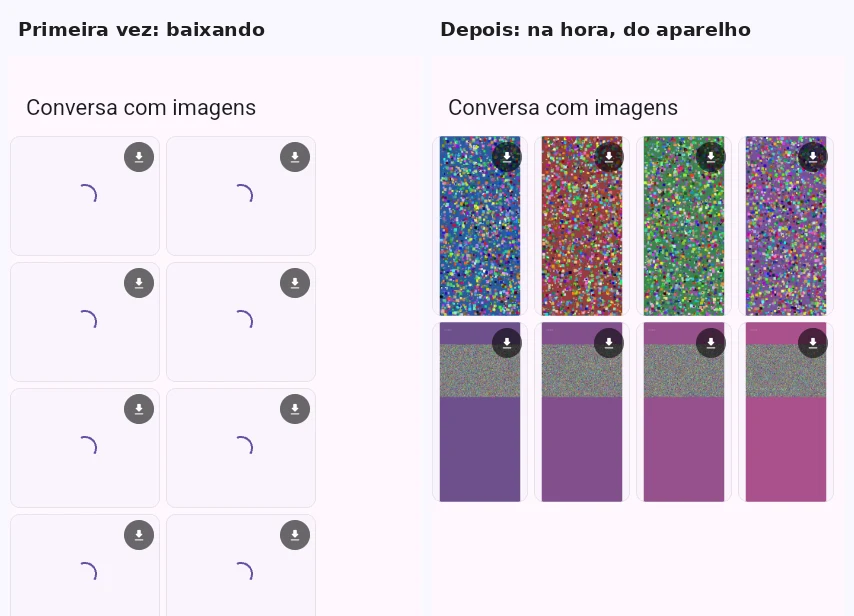
Chat images are no longer downloaded again every time you open a chat.

  • Chat images are now kept on this device: going back to a chat, scrolling or reopening the app shows them right away.
  • Large images finish loading even on a slow connection, without stopping halfway.
  • Team photos and attachments use the same copy and are not downloaded again.
  • Each account has its own copy, erased when you sign out.
Your Synapse is now an assistant

Version 6.75.491 · · Android, Windows, Linux

Your Synapse is now an assistant

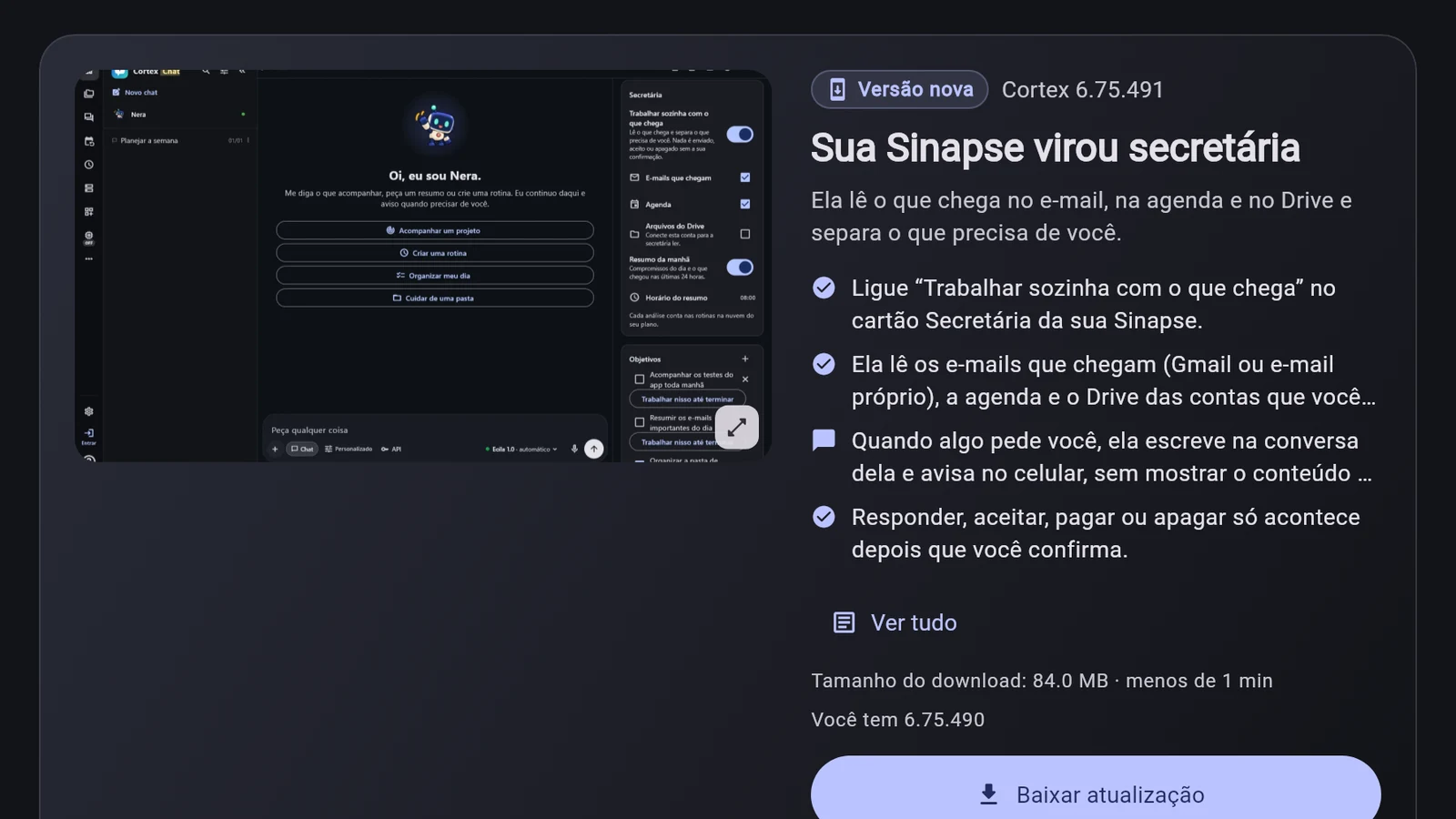
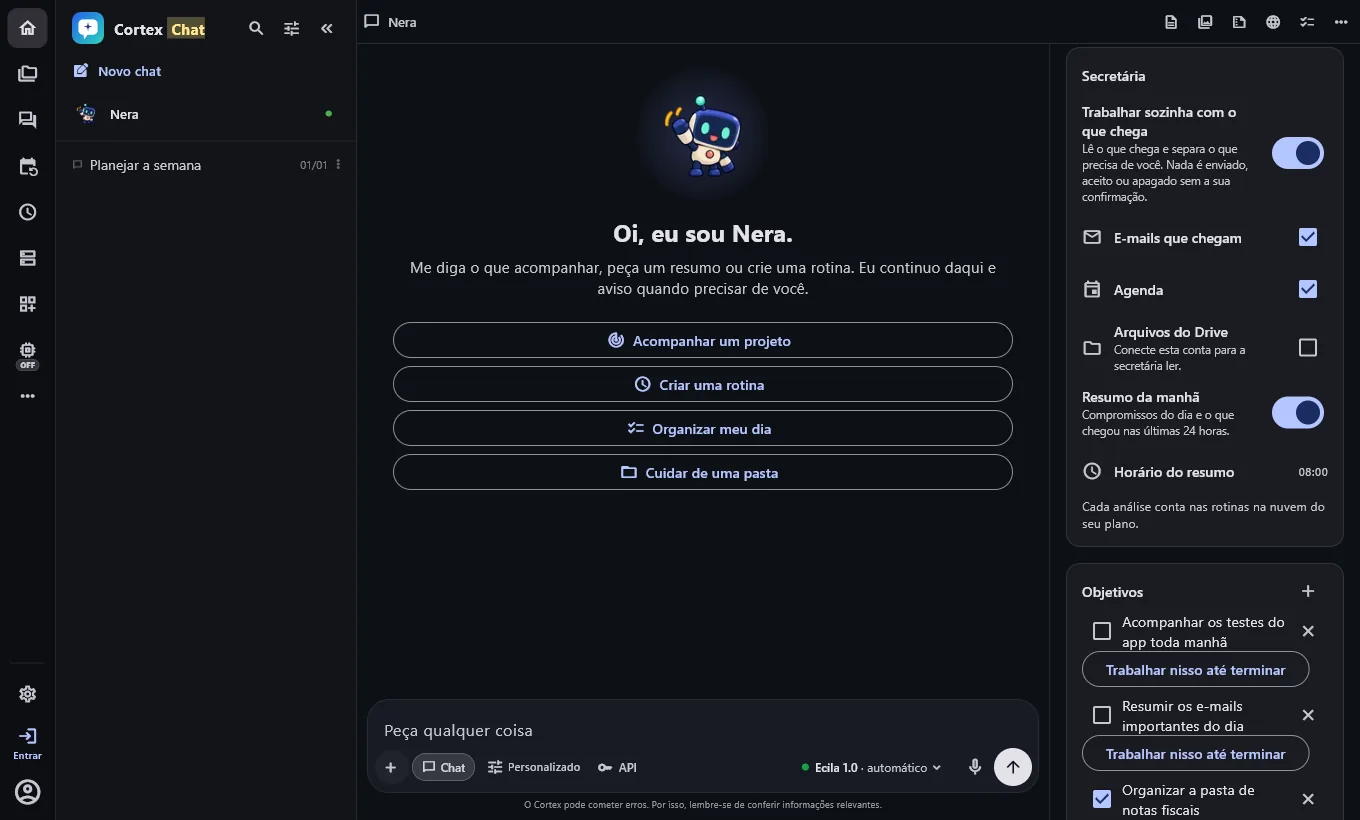
She reads what arrives in your email, calendar and Drive and sets aside what needs you.

  • Turn on “Work on her own with what arrives” in your Synapse's Assistant card.
  • She reads incoming emails (Gmail or your own mailbox), your calendar and Drive from the accounts you connected.
  • When something needs you, she writes in her conversation and notifies your phone without showing the content.
  • Replying, accepting, paying or deleting only happens after you confirm.
  • Morning summary at the time you choose.
  • Deleting text with Backspace in the Synapse conversation works again.
Conversation or Code in a project

Version 6.75.490 · · Android, Windows, Linux

Conversation or Code in a project

Discuss your project without editing anything; a received answer never disappears.

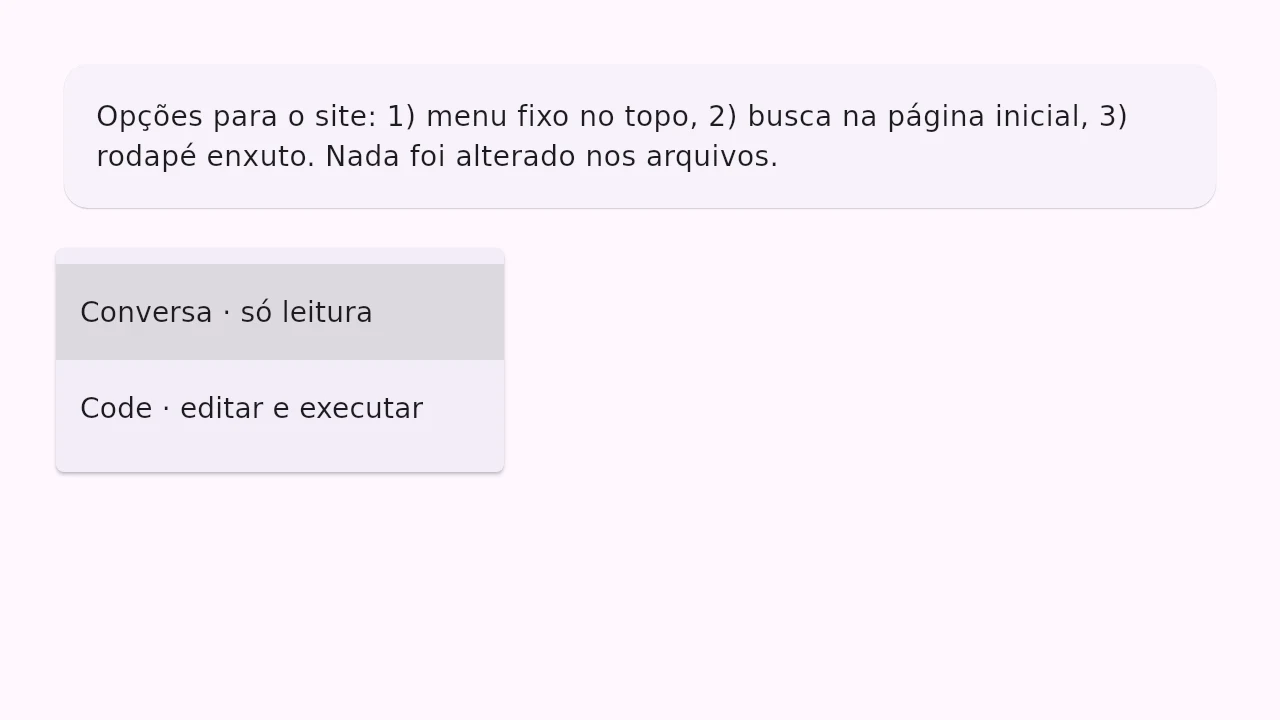
  • Conversation or Code in each project: Conversation only reads files and answers, Code edits and runs.
  • Requests for analysis, options and planning finish with the written answer.
  • The answer you already received no longer disappears when the task is checked.
  • Saying “just give me the options, don't implement” no longer shows “task failed”.
  • Your choice is saved in each conversation.
  • Usage now sits at the bottom of the rail, just above Settings.
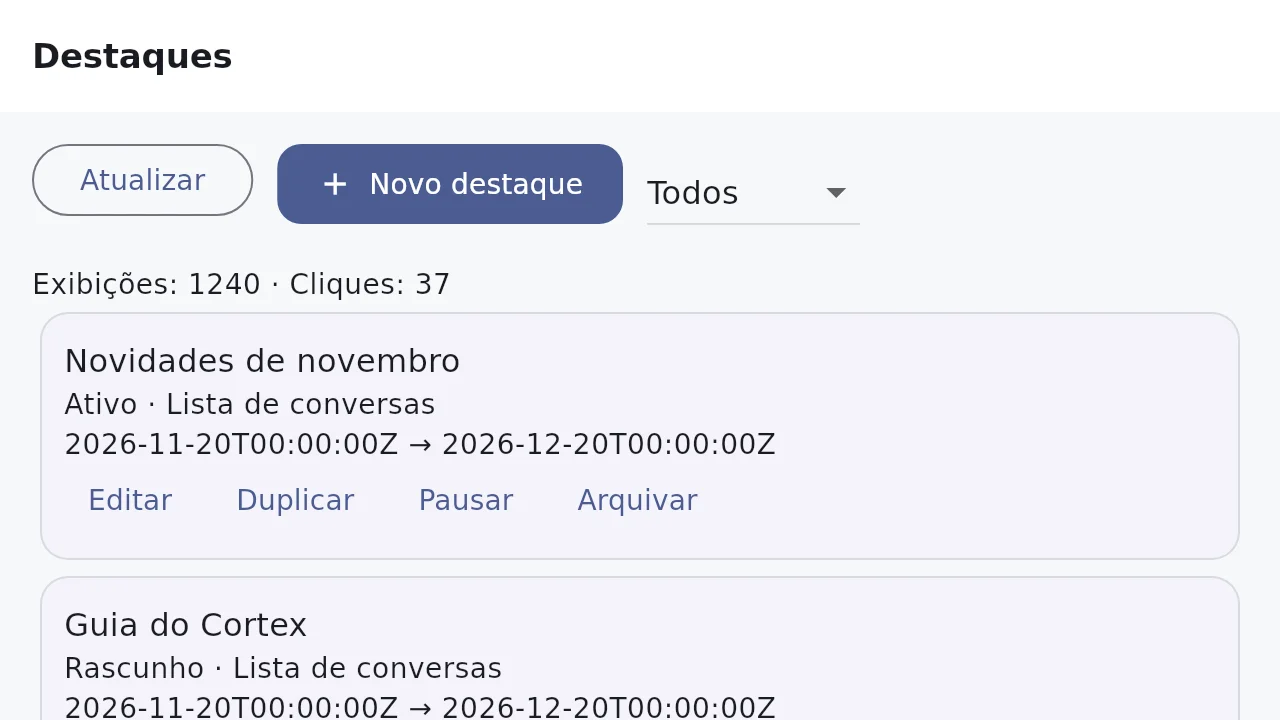
Highlights in the conversation list

Version 6.75.489 · · Android, Windows, Linux

Highlights in the conversation list

The conversation list can show a house banner, with privacy and never inside the chat.

  • New Highlights screen to create drafts, edit, review and see metrics.
  • House banner at the top of the conversation list, for age-verified adults only.
  • The banner never appears inside a conversation or over the message box.
  • Counts are daily totals only, with no account, IP or conversation.
  • 1920×480 image, approved HTTPS destination and review before activation.
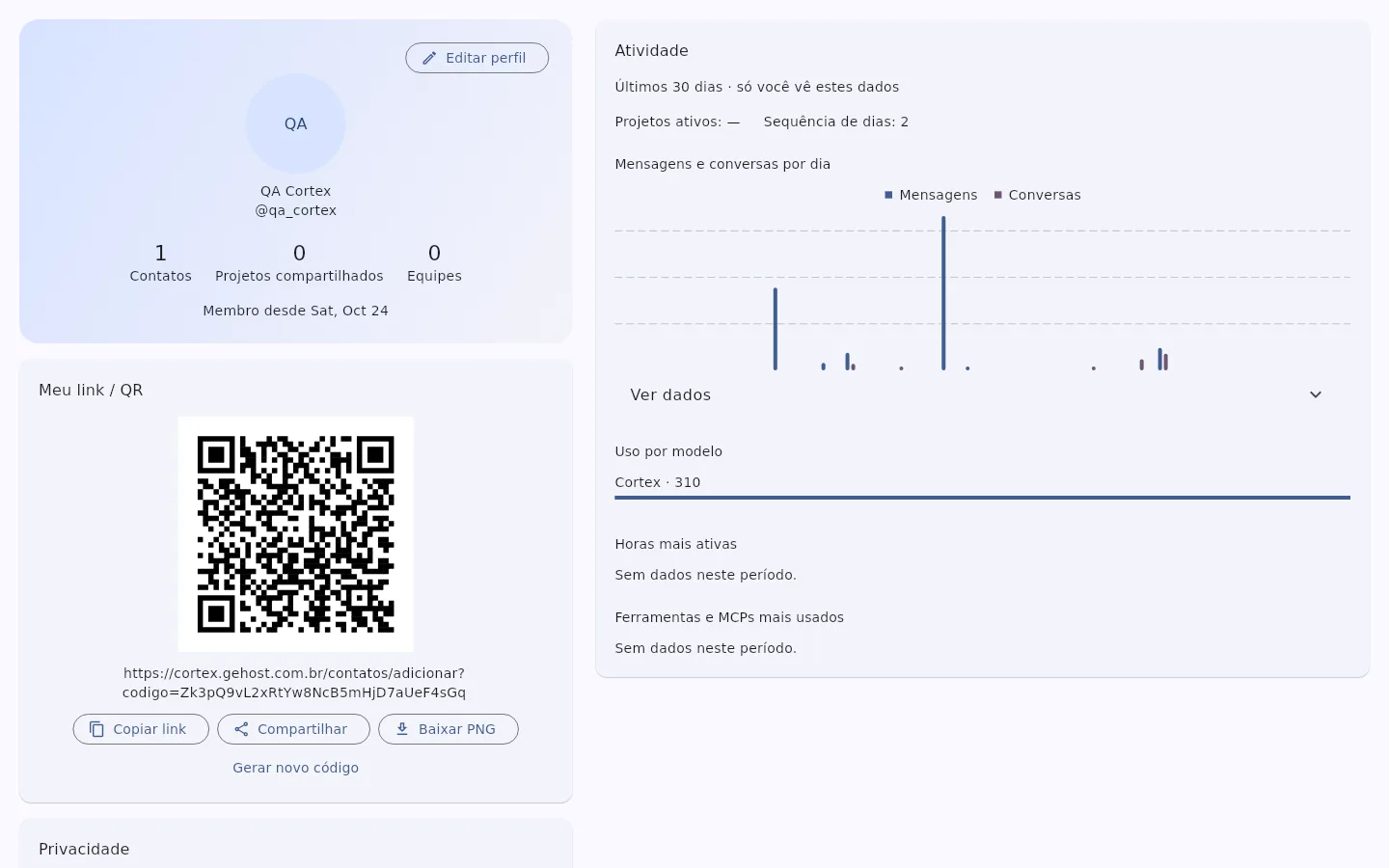
My profile and remote connections

Version 6.75.487 · · Android, Windows, Linux

My profile and remote connections

Profile with QR and charts, step-by-step SSH and stable account connections.

  • My profile: link and QR on the page, activity charts and Edit mode.
  • Step-by-step SSH with each step's timing, also in the background.
  • Several remote machines connected at once.
  • Copyable connection record, without passwords, keys or tokens.
  • Account connections respond from the first call.
  • SSH projects work with the remote terminal blocked.
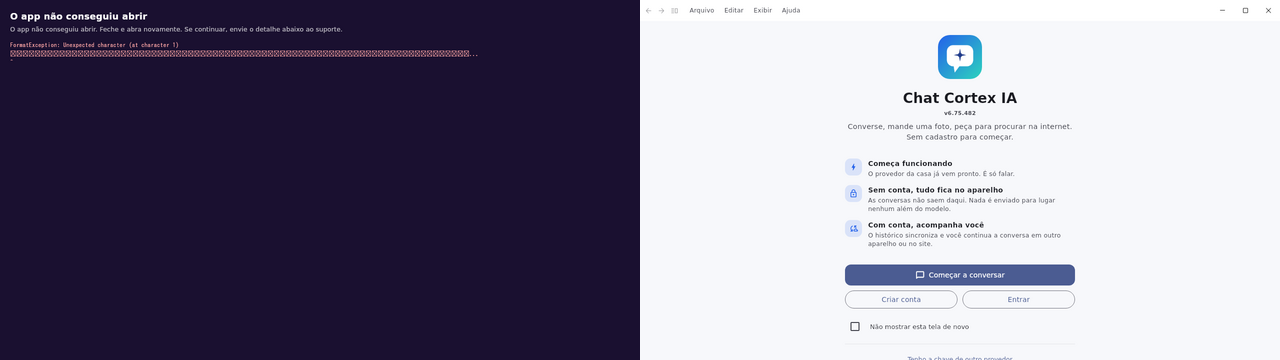
The app opens again on its own

Version 6.75.482 · · Android, Windows, Linux

The app opens again on its own

If the computer shuts down while saving, the app still opens normally.

  • The app opens again on its own if the computer shuts down while saving.
  • Your preferences come back from the last good copy; nothing is deleted.
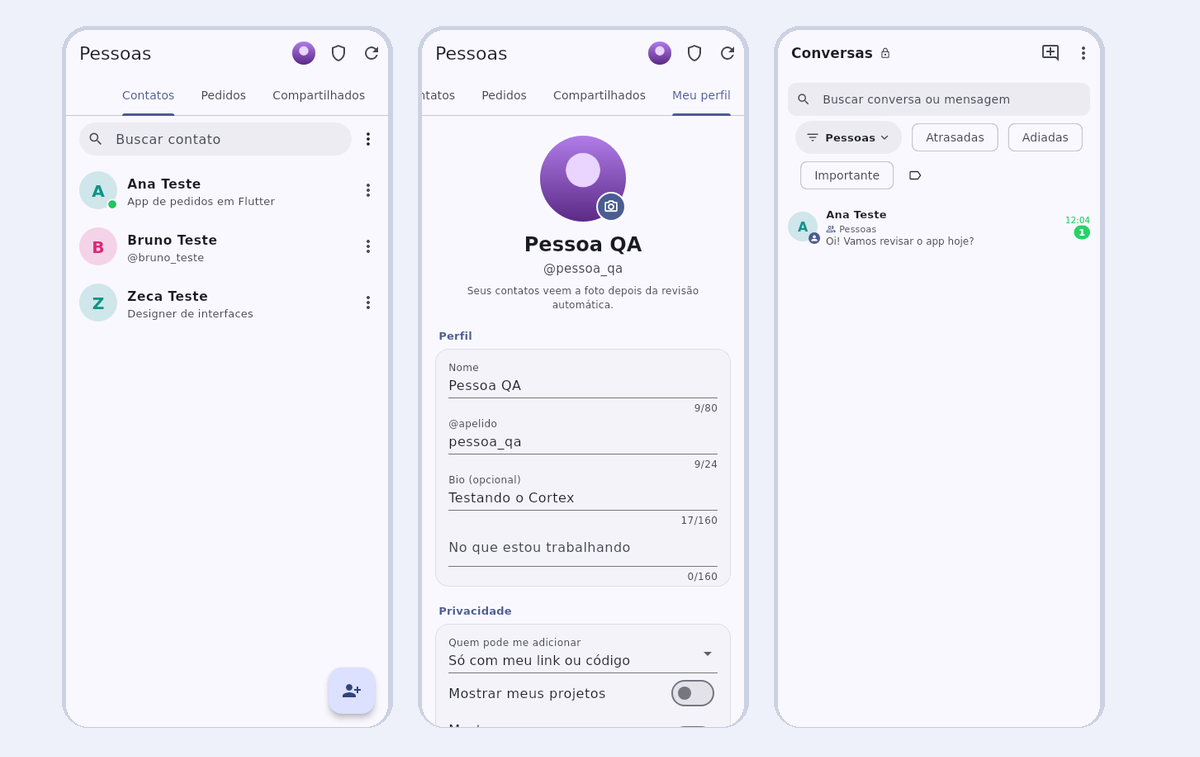
People with photos and direct chats

Version 6.75.480 · · Android, Windows, Linux

People with photos and direct chats

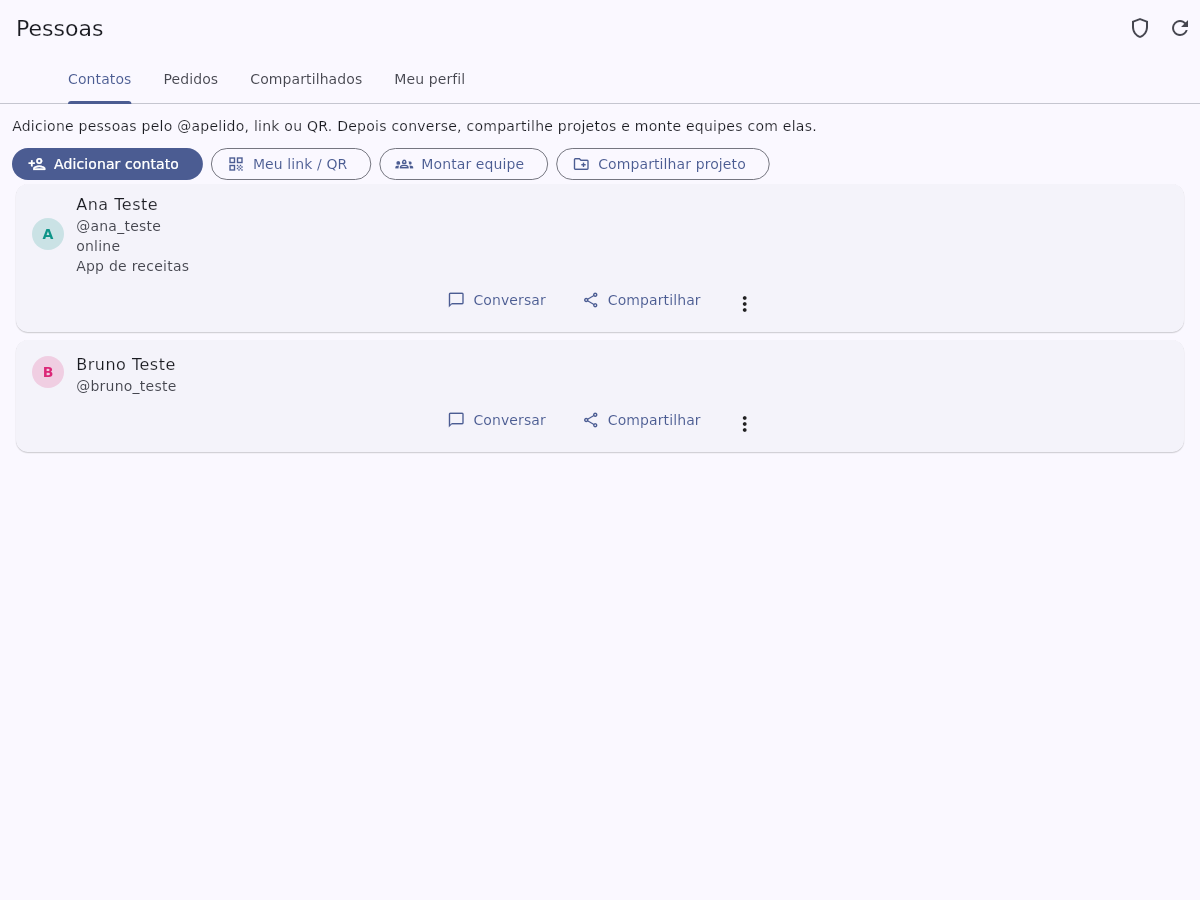
Your contacts with photos, like WhatsApp, and chats open in Conversations.

  • My profile uses your account photo; change it right there.
  • Contacts in alphabetical order, with photo, presence and search.
  • Tapping a contact opens the chat in Conversations.
  • Conversations now has a People type in its filters.
  • Share, mute, block and report live in the ⋮ menu.
  • Your approved photo shows to your contacts.
Your sidebar, Scheduled and Usage

Version 6.75.479 · · Android, Windows, Linux

Your sidebar, Scheduled and Usage

Pin what you use to the sidebar, schedule tasks and check usage in one tap.

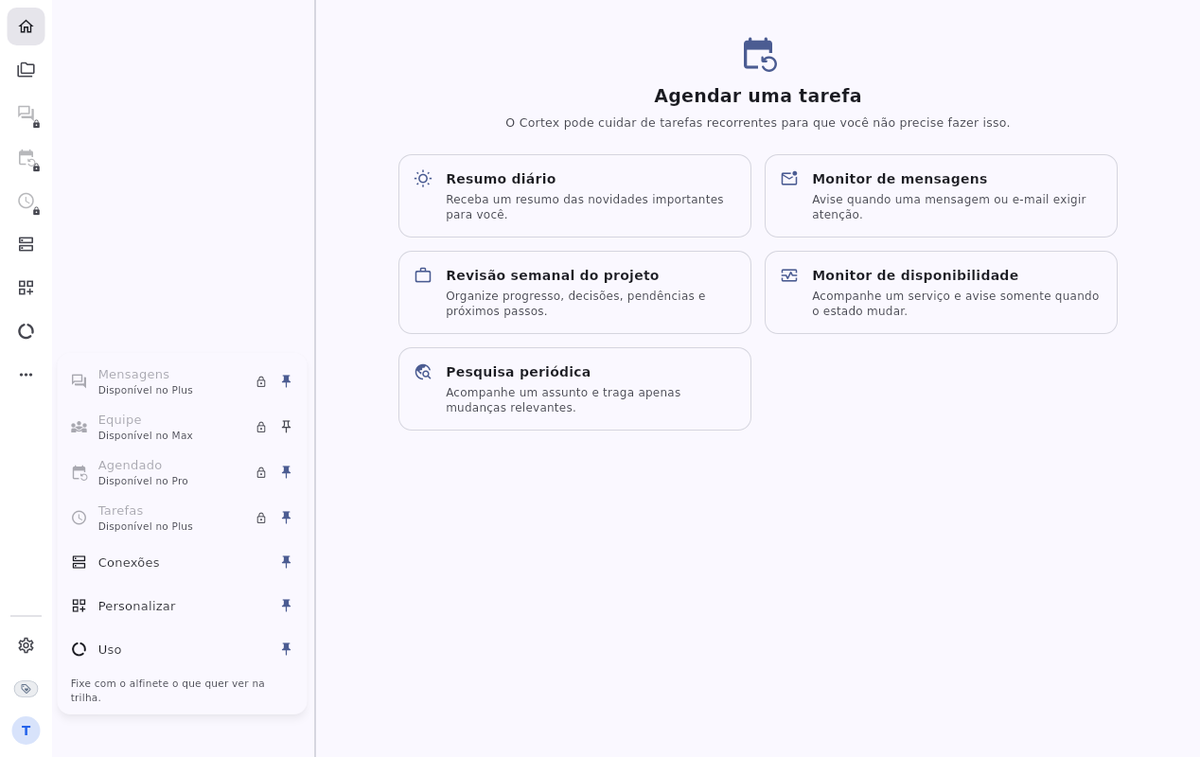
  • Your sidebar: Home, Library, People and Settings stay; the rest is in “…”, with pins.
  • Items outside your plan appear dimmed, with a lock and the plan that unlocks them.
  • Scheduled: recurring tasks from templates.
  • Usage: weekly limit, credits and renewal in one tap.
  • Conversation connectors in a side list with search.
  • Learn now lives in Settings.
People: add, chat and form teams

Version 6.75.477 · · Android, Windows, Linux

People: add, chat and form teams

Contacts is now People, with its own sidebar button. Add people by @handle, link or QR, chat, share projects and form teams.

  • Contacts is now called People and has its own button in the sidebar.
  • Add people by @handle, link or QR and chat with them.
  • Share a project and form teams with your contacts.
  • Received requests and shared items have their own tabs.
See your images and verification result

Version 6.75.476 · · Android, Windows, Linux

See your images and verification result

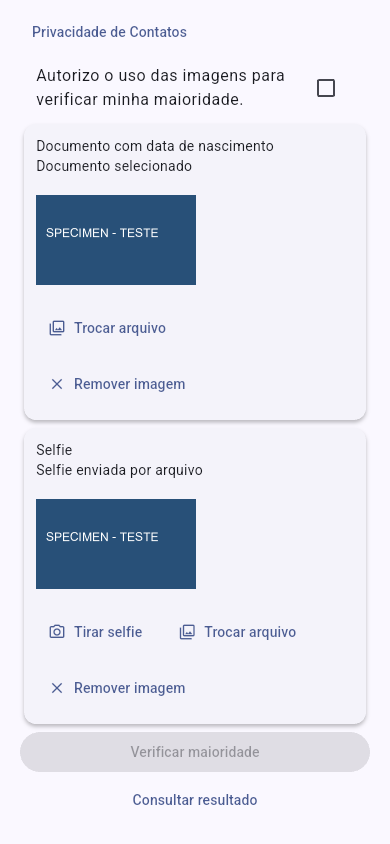
In Contacts, preview your document and selfie before submitting. Take a selfie with your camera or choose a file, then see the result and what to do next.

  • Document and selfie previews let you replace or remove each image.
  • Verification shows approval, an inconclusive analysis, or an unconfirmed result with clear guidance.
  • New approvals show their date, and you can check the result again.
  • Taking a selfie does not prove identity or liveness.
  • Fixed an error when stopping folder sharing between devices.
Broader Android compatibility

Version 6.75.469 · · Android, Windows, Linux

Broader Android compatibility

Improved app compatibility on Android devices.

  • Improved app compatibility on Android devices.
Start with your first message

Version 6.75.468 · · Android, Windows, macOS, Linux

Start with your first message

Fixed an issue that could prevent replies when starting without an account or using an account with limited features.

  • Fixed an issue that could prevent replies when starting without an account or using an account with limited features.
  • On Android, the chat's notification permission request waits until the reply is finished.
Dictation with a waveform and live text

Version 6.75.467 · · Android, Windows, Linux

Dictation with a waveform and live text

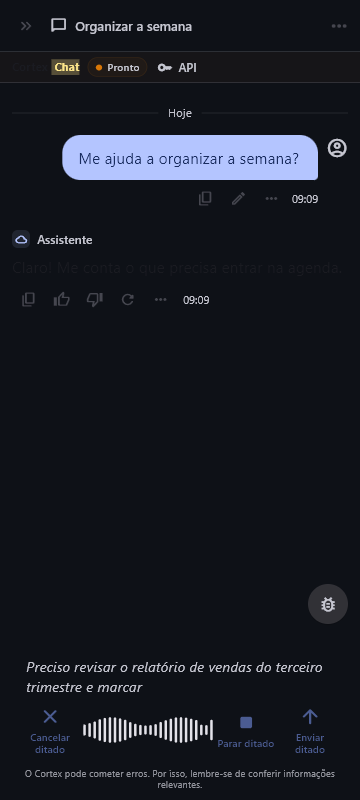
When dictating a message, follow your voice volume in the waveform and read the recognized text above the bar. Cancel to discard, stop to review, or tap the arrow to send.

  • When dictating a message, follow your voice volume in the waveform and read the recognized text above the bar. Cancel to discard, stop to review, or tap the arrow to send.

Version 6.75.465 · · Android, Windows, macOS, Linux

Contacts, projects and clearer conversations

Contacts in an account-limited beta, projects with permissions, and improvements to Conversations, Learn and Code.

  • Contacts starts in an account-limited beta and requires verified adulthood and acceptance of its terms. Add someone by nickname, link or QR code and confirm the request.
  • Chat with your contacts and share files, conversations, code or a copy of selected project files. Collaboration allows editing that copy, with revisions and revocable permissions.
  • Mute, block or report in the app. The safety area lists measures and appeals; you can export your data in Settings.
  • Conversations has compact search and menus; Learn shows profile cards, progress and steps with status.
  • Sharing confirms access for the selected people, and you can stop an existing link without sharing again.
  • Command output keeps updating while tasks run. Code recognises confirmed recovery and avoids repeating the same audit. File tools understand project folders better; Lean mode brings together the essentials.

Version 6.75.460 · · Android, macOS, Linux, Web

More room for your conversation

The Learn shortcut has been removed from the top of the conversation. Help remains in Settings.

  • The conversation has more room without the permanent Learn shortcut or its automatic invitation.
  • Articles, videos and the guide remain available in Settings › Learn.

Version 6.75.459 · · Android, Windows, macOS, Linux, Web

Your conversation stays open

Updates received in the background keep the conversation you are reading open.

  • Updates received in the background keep the conversation you are reading open.
  • When two copies of a conversation are merged, incoming replies continue to appear in the correct conversation.
  • A delayed update no longer reopens a conversation after you return to an empty screen.

Version 6.75.458 · · Android, Windows, Linux

Your connections come back automatically

Connections already used on this device can reconnect when Cortex opens and recover when the network returns.

  • Saved connections you have used reconnect when the app opens, respecting your previous choices.
  • After a network interruption, reconnection attempts use increasing intervals.
  • See the connection status and choose automatic connection separately for each destination.

Version 6.75.457 · · Android, Windows, macOS, Linux

Get started with a guide in Cortex

Choose your profile, practice without sending, and find help in the Learn center.

  • The Learn center brings together a short guide, your progress, and help articles and videos.
  • Choose how you want to use Cortex. Simple mode keeps the basics visible, and you can change it later in Settings.
  • Practice without sending messages or spending credits. You can pause and resume the guide.

Version 6.75.456 · · Android, iPhone, Windows, macOS, Linux, Web

More compact Messages

A more compact inbox, conversation and composer, prioritizing what needs your attention.

  • Messages has a more compact layout, with actions in the header and menus.
  • In supported customer conversations, choose My reply, Suggestions or AI agent in the composer.
  • Your inbox highlights conversations that need you and those you follow; AI conversations remain available through filters.
  • AI replies display bold text, lists and links correctly.
  • The emoji picker now has search, recent items and favorites; reactions appear in supported channels.

Version 6.75.455 · · Android, iPhone, Windows, macOS, Linux, Web

Invitations in the right account

Invitations, cancellations and shared conversations respect account changes and participant removal.

  • Invitations opened before switching accounts are no longer sent through the next account.
  • Cancelling invitations or copying links from old screens also respects account changes.
  • After a person is removed from a conversation, attempts to resend messages and attachments remain blocked.
  • When access to a conversation is removed, the website closes its open history.

Version 6.75.454 · · Android, Windows, macOS, Linux, Web

Account in a single screen

My profile, Account and Account and subscription are now a single screen, Account, with everything in one place.

  • Profile, language, history sync, sign out and delete account now live together on the Account screen.
  • The Settings sidebar lost the duplicated entries: Plans, Credits, Invoices and My notices are still one tap away.
  • Searching settings for profile, subscription or account takes you straight to Account.
  • Same screen on computer and phone.
  • In the installed app, file review shows the correct line numbers and context lines for each change.

Version 6.75.452 · · Android, iPhone, Windows, macOS, Linux

Precise search and faithful histories

Find symbols and code in history, with more faithful imports and separate records for each account.

  • Search finds percentages, symbols and code exactly as typed.
  • Imported histories keep final replies without duplicate messages or mixing accounts and guest records.
  • Reimporting a history without an identifier reuses its previous record after these fixes.
  • Delayed loading no longer replaces the chat you just selected.

Version 6.75.449 · · Android, Windows, Linux

Clearer diagnosis of empty replies

Replies that end empty now receive the correct diagnosis while keeping your selected model.

  • Corrected the diagnosis when a response ends empty, preserving the selected model and safeguards against repeating actions.
  • Automatic reports of slowdowns on desktop now include an additional measurement to help investigate pauses, without including conversation content.

Version 6.75.447 · · Windows

Unread count on the icon

See how many conversations are waiting for you right on the Cortex icon and follow update installs.

  • The Cortex icon on the taskbar and in the tray shows how many unread messages and conversations you have, from 1 to 99+.
  • The number clears when you read, mark as read or sign out, and also follows messages read in another window or device.
  • Updates now show the installer window with its progress instead of closing the app without notice.

Version 6.75.446 · · Linux

Organized conversations on Linux

Organize website conversations in bulk and resize the Linux window more reliably.

  • Select website conversations with a long press or desktop shortcuts and apply actions in bulk.
  • Expired website conversations, those deleted by the visitor and completed conversations move to Archived; a new visitor message reopens support.
  • Delete website conversations with confirmation and eight seconds to undo after syncing older history.
  • Improved opening long responses, displaying completed text and selecting file and code references that wrap across lines.
  • Long conversations use the remaining time to finish the response. Access refusals keep the guidance in the conversation and avoid unnecessary automatic bug reports.
  • Fixed an unexpected exit when resizing the window, including when opening conversation sharing.

Version 6.75.445 · · Android, iPhone, Windows, macOS, Web

Organized website conversations

Select, archive and organize website conversations with bulk actions and deletion you can undo.

  • Select website conversations with a long press or desktop shortcuts and apply actions in bulk.
  • Expired website conversations, those deleted by the visitor and completed conversations move to Archived; a new visitor message reopens support.
  • Delete website conversations with confirmation and eight seconds to undo after syncing older history.
  • Improved opening conversations with very long responses and displaying the text when a response finishes.
  • File and code references in messages can be selected and copied in full, including when they wrap across lines.
  • Long conversations use the remaining time to finish the response. Access refusals keep the guidance in the conversation and avoid unnecessary automatic bug reports.

Version 6.75.443 · · Android, iPhone, Windows, macOS, Linux

Model versions and subscription limits

See each model's version in your own account, your subscription limits, and connect remote connections when Cortex opens.

  • When you use your own AI account, the model picker shows each model's version with a short note on when to use it.
  • In Usage and limits, Your subscription shows the 5-hour and weekly limits with percentage and renewal time as soon as the account replies.
  • Remote connections can connect on their own when Cortex opens. It starts off: turn it on per connection and off for all in Settings.

Version 6.75.442 · · Android, iPhone, Windows, macOS, Linux

Clearer notifications and reports

See who receives each connection’s alerts and control muting from one menu.

  • A card on each connection shows whether alerts are on and who receives them.
  • Choose alert types in groups and mute notifications with the return time clearly shown.
  • Team members appear with avatars; when nobody is selected, it is clear that only you receive alerts.
  • Scheduled reports have an organized section with an option to create a new report.
  • Tools show readable names, and on phones the settings open in a bottom sheet.
  • If the connection status cannot be checked, the card says so and lets you retry through its settings.

Version 6.75.439 · · Android, iPhone, Windows, macOS, Linux, Web

Actions from alerts

Request an action from a connection alert and stay in the same conversation.

  • Reply to an alert from a connection to carry out your request in the same conversation. The alert connection is selected automatically when its destination can be safely identified, including previously downloaded alerts.
  • Refunds, cancellations and deletions still require a preview and confirmation.
  • Attached photos and files appear instantly in the message box, showing preparation progress and an option to try again.
  • On phones, choose conversation connections in a bottom sheet with a close button, drag handle and counter. The list scrolls inside without covering the header. Turn all connections on or off from the same menu. The sheet closes when you start or switch conversations.
  • The Plan option is now in + → How to respond on phones and computers, freeing up space above the message box.
  • Improved diagnostics when task completion cannot be confirmed, distinguishing cancellation, missing completion details and interruptions during the final check.

Version 6.75.435 · · Android, iPhone, Windows, macOS, Linux

Files on iPhone

Fixed file selection when importing plugins and attaching media on iPhone.

  • Fixed the file picker opening when installing plugins on iPhone.
  • Importing plugins from the automations screen also opens the file picker correctly on iPhone.
  • Photos and videos can be selected for reports on iPhone without the file filter error.
  • Improved diagnostics when tools do not finish in time to confirm a task, preserving protection against repeated execution.

Version 6.75.434 · · Android, iPhone, Windows, macOS, Linux

Separate conversations and account access

We preserve independent conversations and explain more clearly when a message cannot be sent.

  • Conversations with short opening messages or a link to another device stay separate. Duplicate checks preserve histories when account confirmation is unavailable.
  • When a session is no longer valid, chat offers sign-in without repeating the message. Old authentication responses do not remove the current account.
  • Rejected messages now have a clearer explanation and keep the selected model, without automatically repeating the request.
  • Improved diagnostics when task confirmation is interrupted, distinguishing cancellation, pausing and time limits.

Version 6.75.432 · · Android, iPhone, Windows, macOS, Linux

Lock-screen alerts and reports

Messages reach your locked phone, and your connections send alerts and reports to the chat.

  • With the phone locked and the app closed, team, WhatsApp and Rui messages show on screen with sound.
  • Compatible connections post alerts straight to the chat, one conversation per connection.
  • Scheduled reports (Pro): ask in the chat or in Connections and the result arrives in the conversation.
  • Choose alert types, mute, or set quiet hours per connection.

Version 6.75.431 · · Android, iPhone, Windows, macOS, Linux, Web

Attachment viewer and website chat

Attachment viewer and simpler website chat setup.

  • Photos, PDFs, videos and audio in conversations open in a viewer with zoom and gallery.
  • The origin filter no longer repeats a site; visitors signed in via the site keep the same chat.
  • Pro support loads again; if something fails, the screen explains why.
  • Website chat: add and connect from the top, usage as X of Y, and an editor with live preview.
  • When a reply takes too long, the technical report now shows the right cause.

Version 6.75.430 · · Android, iPhone, Windows, macOS, Linux

The app opens on Mac again

Cortex opens on Mac again, and the Sign in button is easy to find when you use it without an account.

  • The app opens on Mac again: for a few versions it closed right after launching; if you were signed in, you may need to sign in once more.
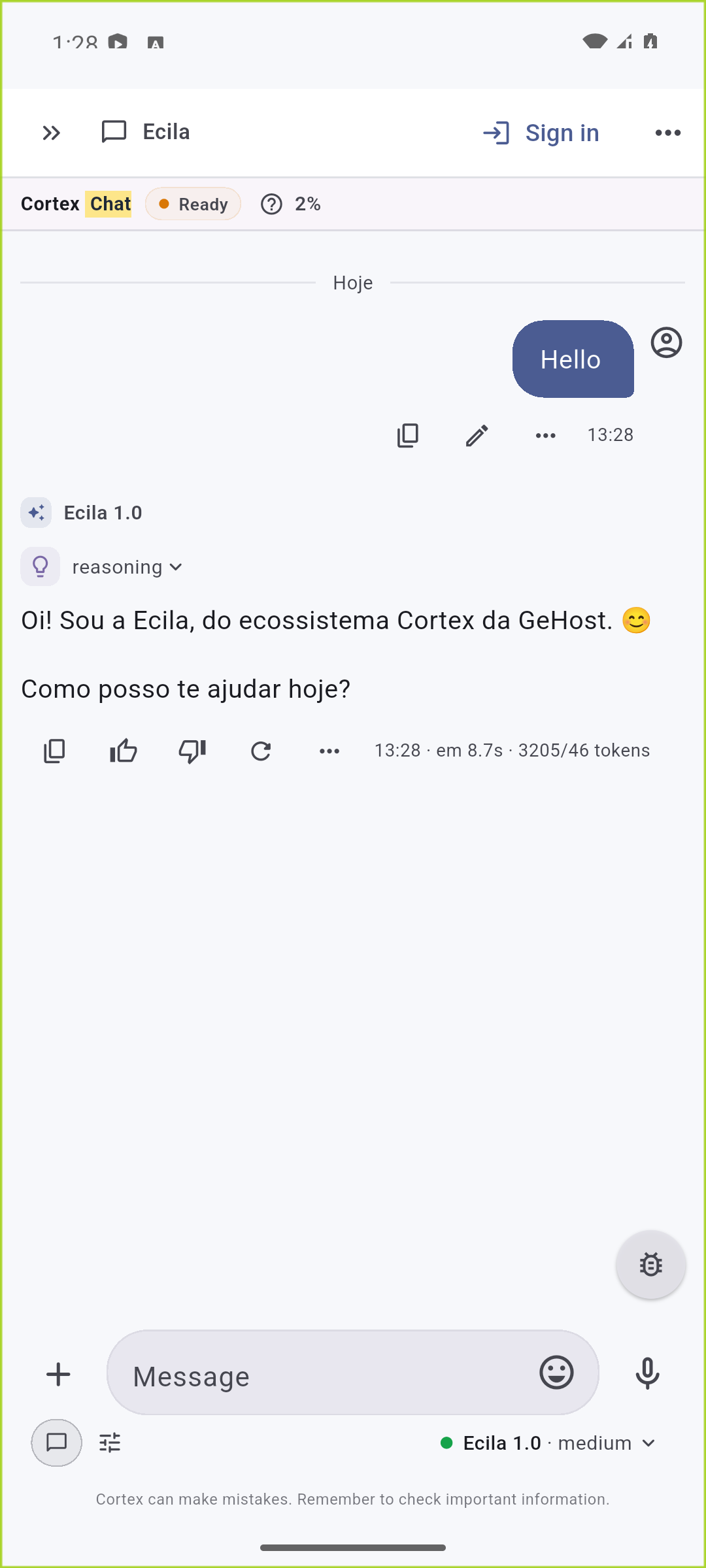
  • Using without an account? "Sign in" is now in plain sight: on the rail, on the account picture and in the conversation list. On computers it opens in a window and you stay where you were.
  • Fixed selecting and copying text containing links in conversations.

Version 6.75.429 · · Android, iPhone, Windows, macOS, Linux

Folders open from the arrow

In the file tree, one tap on the folder arrow or icon now expands and collapses it.

  • In the project file tree, the folder arrow and icon now expand and collapse the folder with one tap; on phones, the tap area is larger.
  • Improved technical reports when a change cannot be confirmed, without sending conversation content.

Version 6.75.428 · · Android, iPhone, Windows, macOS, Linux

Archived moved to the filter menu

A cleaner chat list: archived chats live in the filter menu, and ecosystem partners get a badge on their account.

  • Archived is gone from the chat list: tap the settings icon next to search and turn on "Show archived"; they appear in a discreet row at the end of the list.
  • Gevents producers and GeHost customers now get a badge on their account, with unlimited use of the house model and Ge Support.

Version 6.75.427 · · Android, iPhone, Windows, macOS, Linux

Steadier long responses

Long responses stay steady when finished, with safer failure diagnostics and optional local AI controls from paired devices.

  • Long responses stay stable on screen when the reply finishes.
  • Improved diagnostics for chat response failures without including conversation content in technical reports.
  • A new option lets paired devices turn local AI on and off after you enable it on your computer.

Version 6.75.424 · · Android, iPhone, Windows, macOS, Linux

More reliable file editing

Edit project files while keeping their format, including on Windows.

  • Editing and batch changes recognize different line endings in the supplied text and file.
  • File line endings and special characters are preserved.
  • New files follow the project format; ambiguous passages remain protected and errors explain spacing differences.

Version 6.75.421 · · Android, iPhone, Windows, macOS, Linux

Files that are easy to open and test

Open files from your chat with the browser you choose.

  • Files become cards with their name, folder and referenced line, including paths with spaces.
  • Choose Cortex, your default or an installed browser; your last choice stays marked.
  • Previews keep project styles and scripts and tell you if the file does not exist yet.
  • On Linux, previews open in their own Cortex window.

Version 6.75.419 · · Android, iPhone, Windows, macOS, Linux, Web

Clear continuation and compact filters

Continue your tasks clearly and find conversations with filters in one place.

  • Action requests continue when a response only announces what will be done.
  • Resume controls disappear when the task is complete.
  • Message menus open where you press or click.
  • Messages filters in one button, with readable search on mobile.
  • Continuing keeps the project permissions and limits.
  • Conversations waiting to continue ask for attention in the sidebar.

Version 6.75.415 · · Android, iPhone, Windows, macOS, Linux

Status in the list, clearer tasks

Fixes for what you reported in Code mode.

  • Chats get a mark: green finished, yellow needs you, red failed.
  • Chat list with lighter text and more compact rows.
  • Long tasks reorganized in tabs, with search and filters.
  • Questions and requests for opinions finish with the answer, no block.
  • A search that fails in the terminal no longer blocks the task.
  • Your approval policy is saved per project and survives updates.

Version 6.75.414 · · Android, iPhone, Windows, macOS, Linux

Parallel tasks and project memory

More tools for your project.

  • Parallel tasks in branches, with review and pushes to GitHub/GitLab.
  • Plan mode without changing files; @ mentions files; project memory.
  • A 15-request queue with estimates; on Pro, other apps use your PC's AI.
  • Support with canned replies, labels and deadlines; photo notifications.
  • Right-click and Ctrl+V act in place; tasks keep going without window focus.
  • Clearer plans; images and videos show queue and estimates.

Version 6.75.413 · · Android, iPhone, Windows, macOS, Linux

Parallel tasks and project memory

More tools for your project.

  • Parallel tasks in branches, with review and pushes to GitHub/GitLab.
  • Plan mode without changing files; @ mentions files; project memory.
  • A 15-request queue with estimates; on Pro, other apps use your PC's AI.
  • Support with canned replies, labels and deadlines; photo notifications.
  • Right-click and Ctrl+V act in place; tasks keep going without window focus.
  • Clearer plans; images and videos show queue and estimates.

Version 6.75.408 · · Android, iPhone, Windows, macOS, Linux

Code commands work again on Windows

Commands run again on Windows.

  • On Windows, Code-mode commands run again: the app folder path with spaces made every command fail.
  • If a command cannot even start, the task now shows why instead of just failing.
  • The project's Workspace folder is recognized regardless of letter case on Windows.

Version 6.75.404 · · Android, Windows, macOS, Linux, Web

Tasks finish when they're done

The final answer closes the task.

  • After the final answer the task ends: the app no longer resumes on its own or repeats the conclusion.
  • Long tasks no longer end up paused for no reason when the work is done.
  • Changes without a test now show a warning in the delivery; real failures still block.
  • A stalled command with no output is stopped with its process tree and no longer holds the task.
  • Site previews started in Code run in the background and stop at the end of the turn; repeated failures change strategy.

Version 6.75.403 · · Android, Windows, macOS, Linux, Web

Clearer chats, tasks and plans

Titles kept

  • Keep subfolders/Workspace; find/filter projects/folders/SSH/shared PCs
  • Test SSH before saving; local events/history per account
  • CPU/RAM/disk/progress. Focus eases load; Maximum needs Pro; safety/manual limits free
  • Free/Plus/Pro/Max: rights kept; optional counts start off
  • Checkpoint/limit/resume; steadier selection; lighter Code; no duplicate Synapse chat
  • Windows saves/pauses/stops better. Mobile: 5 lines, +camera/files, emoji/@, empty channel guides/compact teams, origin filters/links

Version 6.75.382 · · Android, iPhone, Windows, macOS, Linux, Web

Team and Messages, together

One inbox for your team and customers, your Synapse across devices, and clearer local AI settings.

  • Messages brings together channels, groups, direct conversations, shared AI chats and your connected customer channels. Find conversations with All, Team, Customers/Channels, Unread and Assigned to me filters.
  • Team members, invitations and settings are under the header gear. Existing shortcuts and notifications still work.
  • Continue your Synapse conversation across devices with messages and attachments preserved. Name, colors, mascot and on/off follow your account; folders, on-screen presence and system startup stay on each device.
  • In the desktop app, see your model, performance and memory, compare context sizes and get suggestions for your goals. My PC AI has clearer cards and guidance on your phone.
  • Your Synapse follows the cursor from her conversation portrait, without empty strips; global presence floats and can be dragged.
  • Tools that are not yet approved remain unavailable for installation and updates.

Version 6.75.378 · · Android, Windows, Linux

The app stays light in long sessions

With the assistant working for hours in Code mode, the screen no longer freezes: scrolling, typing and switching chats keep responding.

  • Replies with hundreds of tool steps are no longer redrawn in full with every new piece: only the end changes on screen.
  • Saving the reply in progress and preparing each request got much lighter, with no pauses while you type.
  • If the screen stalls for more than 2 seconds, the app tells us on its own what was going on, without sending any of your content.

Version 6.75.377 · · Android, iPhone, Windows, macOS, Linux, Web

Support that fits your website

A compact chat that matches your website, with file previews in the conversation.

  • Choose the launcher, position, colors and window mode with a live preview.
  • See when the assistant is thinking, checking information or handing over to a person.
  • Send images, audio and PDFs with previews in the conversation.
  • Handle your website conversations in Messages, including on the Web.

Version 6.75.376 · · Android, Windows, macOS, Linux, Web

New expressions for your Synapse

Your companion gets her own space, an attentive gaze and alerts explained in her conversation.

  • Choose where each Synapse appears: in her own conversation, throughout Cortex or above other windows on devices that allow it.
  • Your mascot stays in her own space and follows you with her gaze. Tap to pet or double-tap to open her conversation.
  • Discreet alert bubbles open the full explanation in her conversation. You can turn them off and choose the time between alerts.
  • All ten mascots have new expressions and reactions to conversations and tasks. Animations respect your device’s reduced motion setting.

Version 6.75.371 · · Android, Windows, macOS, Linux

A light terminal, even with huge output

Commands that dump a lot of text no longer freeze the app, and the AI stays fast in long Code sessions.

  • Terminal output reaches the screen in batches, on a path separate from the window: a command that prints millions of lines no longer freezes the app or the mouse pointer.
  • In Linux, macOS and SSH terminals, a huge line with no breaks (like compact JSON) is shown summarized, with the beginning and a count of what was left out.
  • In long Code sessions, the AI receives the beginning, the error lines and the end of each large command, and each command finishes without extra waiting: work moves faster.
  • If the screen stalls for more than 2 seconds, the app lets us know on its own, without sending any of your content.

Version 6.75.370 · · Android, Windows, macOS, Linux

LINE and Telegram in Messages

Serve LINE and Telegram customers in the same Messages inbox, with AI help and your team alongside.

  • Connect a LINE Official Account or a Telegram bot in Customize › Connections. Chats arrive in Messages next to WhatsApp, with a channel filter and an unread counter.
  • The AI reads, summarizes and drafts; nothing is sent without your confirmation. Your team replies with the same view, reply and manage permissions.
  • On LINE, replies use the reply token while it is valid; after that they go out as push messages and count toward your LINE plan's monthly quota — the chat tells you. The automatic assistant never uses push.
  • Received photos, files and audio open when you tap them. On Telegram you can also send attachments up to 20 MB; on LINE, text only for now.

Version 6.75.369 · · Android, Windows, Linux, Web

Tool image previews

See images from each step and find your files in your account or chat library.

  • Tool steps show image and page thumbnails. On desktop, hover to preview; tap or click to open the gallery with arrows, zoom and file actions.
  • The library in the navigation rail opens files from your entire account, with filters for chat, type and date. The button inside a chat still opens only that chat's files.
  • Step previews also appear in shared chats. Sensitive content stays protected.

Version 6.75.368 · · Android, Windows, macOS, Linux, Web

Sections, Synapses and agents

More room to chat, more useful Synapses, and your projects’ agents in one place.

  • Open Messages from the rail, with unread counts.
  • Sections use the full area; Chats restores your list and conversation.
  • Correct previews and hidden inappropriate content; team chats with bubbles, authors and an AI avatar.
  • Synapses stay in their own phone conversation, with smooth mouse following and automatic startup.
  • Choose context with previews, connect Google and track missions in a logbook.
  • Find agents in folders and connections, with previews and read-only discovery.

Version 6.75.355 · · Android, Windows, Linux

Notices that answer back

Ask or request something inside a notice and the answer arrives right there.

  • Reply to a notice and your question goes straight to whoever sent it: the answer arrives in the same conversation.
  • A “Got it” shows up right away, so you know someone is already on it.
  • Requests made there are handled right there too, with what was done.

Version 6.75.353 · · Android, Windows, macOS, Linux

Your subscriptions with Cortex Plus

Connecting a personal AI subscription is now included with Cortex Plus and higher plans.

  • Connect your personal AI subscriptions with Cortex Plus or a higher plan. The button shows where this feature is available and opens plans inside the app.
  • On Cortex Free, your own provider keys and local AI remain available.
  • Existing connections receive an in-app notice and a 14-day grace period. The deadline appears in the app.

Version 6.75.351 · · Android, Windows, Linux

More complete website support

Forms, visitor sign-in, departments, hours, notifications and reports for your website chat.

  • A form before the chat, with consent, and visitor sign-in through your own website; you choose who joins each conversation.
  • Departments and support hours, sending each conversation to the right person; pages where the chat shows or stays hidden.
  • Notifications just the way you want: per chat, with quiet hours, and with the preview and photo kept private on your device.
  • Support ratings and reports by department, page and hour, with CSV export; connect to your website and get automatic alerts.

Version 6.75.350 · · Android, Windows, Linux

Connect your browser more easily

Install the extension with a guide and connect your browser with a button.

  • Settings › Connected browsers: install the extension with a three-step guide and connect with a button, confirming in the app.
  • One tap in the extension allows all sites at once, with optional blocks; your browser asks for your confirmation.
  • In Connections, Website chat sits with the Messages channels and services appear as compact rows with their logos.

Version 6.75.348 · · Android, Windows, macOS, Linux

Synapse mascot on Windows

On Windows, your Synapse's mascot now stays on the desktop, on top of other windows.

  • On Windows, when you choose Settings › Synapses › On-screen mascot › On the desktop, the mascot now shows up in the corner of the screen, on top of other windows, with a transparent background.
  • It shows its real mood: it waves when it opens, thinks while the AI works and celebrates when it finishes. Tap it to open your Synapse or drag it to move it.
  • When you close Cortex, the mascot goes away with it within a few seconds.

Version 6.75.347 · · Android, Windows, macOS, Linux

Synapses: companions that work for you

Create a Synapse: a companion with a mascot, its own conversation, goals and routines that keeps working for you.

  • Create your Synapse right below "New chat": give it a name and pick its look in "Customize your Synapse" (colors, characters or one of 10 mascots).
  • It has a conversation of its own with, right beside it, its goals, routines, recent activity and the results of what it did.
  • Cloud routines run on time even with your computer off, and the result lands in its conversation; computer routines use the Cortex app on your PC, only in the folders you allow, and ask for your confirmation before anything sensitive.
  • The mascot stays on screen and shows what is going on: it thinks while the AI works, celebrates when it finishes, looks sad if something fails and sleeps late at night. On a computer it can sit on your desktop and, on Android, in a bubble.
  • Right-click (or long-press) its name to rename, pause, restart or delete it. One Synapse with Cortex Pro and up to three with Cortex Max.

Version 6.75.345 · · Android, Windows, Linux

Website chat in the Messages inbox

Put a chat on your website: visitors talk to your AI agent and, when needed, someone from your team takes over from the Messages inbox.

  • In the app, go to Messages › Accounts and team › Website chat (or Settings › Connections) and create your website chat: name, color, logo, greeting, business hours, language and your site's addresses.
  • Copy the line of code and paste it on your site (WordPress, Wix, Shopify or any page): the chat window shows up in the corner, on phones too.
  • Pick an AI Agent to reply on its own with your business information, or just suggest replies; when it doesn't know, it calls someone from your team.
  • Visitor chats arrive in the Messages inbox, Site channel, together with WhatsApp, Messenger and Instagram: you or your team take over from there.
  • No tracking cookies: visitors see the privacy notice before writing, the chat stays in their browser and can be deleted anytime. Up to 3 website chats, on Cortex Pro and Cortex Max.

Version 6.75.344 · · Android, Windows, macOS, Linux

Messenger and Instagram in the Messages inbox

Messages from your Facebook Page and Instagram professional account arrive in the same inbox as WhatsApp, with AI and your team helping you reply.

  • Connect your Facebook Page and the Instagram professional account linked to it in Settings › Connections: messages arrive in the same Messages inbox as WhatsApp, with chips and a badge for each channel.
  • Up to 3 Pages on Messenger and 3 Instagram accounts, chosen after the Facebook login; chats stay on your device and your team can answer together.
  • Instagram: replies to and mentions in your stories show up with their own label, plus photos, videos, audio and shared posts.
  • Meta's rules right on screen: free replies for 24 hours; after that, for up to 7 days, only a person can reply as human support (the AI doesn't send during that time).
  • The AI helps read, summarize and reply on Messenger and Instagram too, and the AI Agent works on these channels.

Version 6.75.343 · · Android, Windows, macOS, Linux

Team: logo, members and polished settings

Team management is now complete and polished: logo and color, step-by-step creation, members with role and presence, invites with limits, permissions, activity and usage charts.

  • Each team has a logo (with cropping), a color and a description; the header shows how many people are online and the team switcher shows each team's logo.
  • Creating a team now takes three short steps: name, logo and color, and inviting people by email or link.
  • Members with photo, role (owner, administrator, member), presence and last message; the owner changes a role with one tap, and pending invites can be resent, copied or canceled.
  • Invite links with an expiry (1 hour to 30 days) and a people limit; when it runs out, the link stops working on its own.
  • Settings in sections: who pays, who the AI asks, permissions (who creates channels, groups and shares chats), team notifications and a danger zone to leave or delete; activity as a filtered timeline and a Usage tab with charts by person, chat and day.
  • Fixed: "Contact info" now opens the details next to the chat (in a sheet on phones), and right-clicking another chat while a menu is open opens that chat's menu.

Version 6.75.342 · · Android, Windows, macOS, Linux

Local AI: new catalog with official logos

On the computer, the local AI catalog is nicer and easier: each family's logo, the model recommended for your PC and the download right on the card.

  • Each model shows the official logo of its family, grouped by family, in cards of the same size.
  • At the top, the model recommended for your PC; each card says whether it runs smoothly, slowly or does not fit, and why, in one line.
  • Downloads, likes and last update from Hugging Face, tags (Coding, Reasoning, Light) and the download progress right on the card.
  • Filters in a single row (use, size and family) and sorting by recommended, smallest, most downloaded or newest.
  • The catalog updates itself: new versions of the official families, with a free license, show up with the New badge.

Version 6.75.341 · · Android, Windows, macOS, Linux

WhatsApp message templates

Now you create and follow your WhatsApp message templates right in Cortex, without leaving the app.

  • In Messages, the Message templates button shows your WhatsApp templates with their status: approved, in review or rejected (with the reason).
  • Create a template right in Cortex: name, category, language, header, text with variables and footer, with a preview of what the customer will see.
  • Submit it for Meta's approval and follow the result in the list; once approved, it can be sent outside the 24-hour window.
  • Fixed: starting a new chat in Messages sometimes froze the screen when closing the number window.

Version 6.75.340 · · Android, Windows, macOS, Linux

AI Attendant in Messages

This version brings the AI Attendant: it answers your customers with your business information and calls you when needed.

  • Create your attendant: tell it what you sell, prices, hours, address, rules and frequent questions.
  • Choose per inbox or per chat: off, suggest drafts or reply on its own, with rules like only outside business hours or only new contacts.
  • When it doesn't know, the customer asks for a person or there's a complaint, the AI hands the chat to you and notifies your phone.
  • Learn from your team: the AI suggests what it learned from your replies and only keeps what you approve.
  • Report with chats, AI and team replies, first-reply time and reasons, to download as CSV or PDF.

Version 6.75.339 · · Android, Windows, Linux

Images reach your connected accounts

This version makes the image you attach reach the AI of the accounts you connected on your computer.

  • The image you attach now goes along with your request to the AI of the accounts you connected on your computer.
  • If the chosen model can't read images, Cortex reads the text written in it and tells you it read it that way.
  • Connectors turned on in the chat now also work with your connected accounts, always asking for your permission.
  • The connector can attach the chat image to the record you ask for, like the photo of a job post.
  • A Google account connected on your computer answers again with the newest version of the official program.

Version 6.75.338 · · Android, Windows, Linux

Shared chats work like any chat

This version makes shared chats work just like any other chat, only with other people taking part.

  • Shared chats now open in the same screen as any other chat: same bubbles, model picker, tools, attachments and dictation.
  • Each message shows who sent it, with photo and name; you can also see who is typing and who has read it.
  • When someone makes a request, the answer usually comes from the device of whoever asked, with the same tools as any chat.
  • App notices now appear at the top without covering the chat.
  • Usage and limits: every model has a clear name and the titles follow the period you picked.

Version 6.75.336 · · Android, Windows, macOS, Linux

More accurate usage counts

This version makes Cortex usage counts more accurate and organized; your conversations stay as they were.

  • More accurate usage counts, organized by day, with comparison between periods.
  • Nothing changes in your conversations: they stay exactly as they were.

Version 6.75.335 · · Android, Windows, macOS, Linux

Messages: WhatsApp Business in one inbox

Your WhatsApp Business chats in Cortex, with AI helping you read, summarize and reply and your team answering together — and they stay on your device.

  • A single Messages button on the rail gathers your WhatsApp Business chats into one inbox, in the WhatsApp look: photo, preview, time, unread count and All, Unread, WhatsApp and Assigned to me pills.
  • Chats stay on your device: Cortex only relays them, encrypted, and deletes them as soon as each device receives them. Disconnecting clears the inbox.
  • Ask the chat AI: who messaged me, summarize my day, read the chat with Ana, leave a draft. Sending always shows the preview and waits for your yes.
  • Answer as a team: choose who only views, who replies and who manages; assign a chat to someone, leave internal notes and see who is replying right now.
  • Reply with a quote, send emoji, photos, documents and audio. Outside Meta's 24-hour window, only approved templates, with the preview filled in.
  • Up to 3 WhatsApp numbers per person, on Cortex Pro and Cortex Max.

Version 6.75.334 · · Android, Windows, macOS, Linux

Manage your Team's chats and people

Remove, move, archive or delete chats, change who is in them and choose who to share with; a shared chat stays in its place, with a badge.

  • Right-click on desktop or long-press on mobile on any Team chat: rename, pin, mute, archive, remove from the team, delete and see who is in it.
  • People in a chat: add, remove, replace someone in a single step or hand the chat over to another person. Whoever leaves loses access right away and the history stays.
  • Sharing now asks with whom: the whole team, just some team members or up to 4 people, including people outside by email.
  • A shared chat stays in its place in your chat list, with a purple badge and the photos of who is in it. The list moves up whatever got a new message or an AI reply.
  • On desktop, tapping the chat name opens its details on the side, like WhatsApp. The Team screen got search, sections with counters and three columns.
  • On mobile, the list menu separates Chat style and Screen layout: Rail + chats, Rail only or Full screen.

Version 6.75.333 · · Android, Windows, macOS, Linux

Faster team chats and groups, with photos

Messages arrive instantly, with everyone's photo, typing and read receipts, and you can now bring up to 4 people into one of your chats.

  • Team messages show up right away: a clock while sending, ✓ sent, ✓✓ delivered and blue ✓✓ once the person has read it. In groups, press and hold to see who has read it.
  • Everyone's photo appears in messages and in the list, with live "typing…", online and last seen.
  • Add people: in the "…" of one of your chats or code sessions, invite up to 3 people. They see what was already said and the AI answers everyone, each request on the requester's own limit.
  • New Team section in the chat list, above Code and Chat, with an unread counter. Groups with photo, description, pin and mute.
  • In-app alerts now slide down from the top with the sender's photo, including our assistants, and on Android notifications group the messages of each chat.

Version 6.75.332 · · Android, Windows, macOS, Linux

Your videos on every device

A video created in a conversation appears on your other devices with its cover and length, and the Library has search and a new look.

  • A video created on one device shows up on the others, in the conversation and in the Library, with cover, length and the same protection for sensitive content.
  • The video finishes and is saved in the conversation even if you close the app while it is being created.
  • While the video is being created, the card shows how long until it is ready.
  • Video creation is part of the Cortex Max plan, with videos from 5 to 8 seconds. On other plans, the conversation shows how to unlock it.
  • The Library has the app's new look: title, search by file or conversation name, and a grid with video covers.

Version 6.75.331 · · Android, Windows, macOS, Linux

Your WhatsApp Business inside Cortex

With WhatsApp Business connected, your chats get their own page to read, reply and get help from AI.

  • With your WhatsApp Business connected, a WhatsApp button shows up in the sidebar: all your chats on one page, with name, preview, unread messages and time.
  • Reply with text, attachments or audio. What you send from the phone app shows up here too, and your phone history can be imported when you connect.
  • After 24 hours without a reply from the contact, Meta's rules only allow approved templates: the app lists your templates and previews them with the fields filled in.
  • AI suggests replies, summarizes the chat and, only if you turn it on, replies for you within the 24-hour window.
  • Connecting WhatsApp Business from your phone is simpler: Meta's authorization opens and comes straight back to Cortex, on Android, iPhone and computer.
  • New message alerts on your phone, with their own switch in Settings › Notifications.

Version 6.75.330 · · Android, Windows, macOS, Linux

AI subscriptions, always up to date

The AI subscriptions you connect on your computer update through the official installer and show the newest models.

  • The AI subscriptions you connect on your computer show the installed version and an Update available badge, with an Update provider button.
  • Update automatically is on by default: when the app opens and once a day, each subscription is updated through the maker's official installer, without interrupting conversations. If that fails, you get the exact command to run.
  • After updating, the list brings your subscription's newest models, and the default model becomes the newest one it offers.
  • Fable 5.1 is here, and the model you pick is now the one that answers: each reply shows the model that actually did the work.
  • The connected account is shown in a readable way, with email and plan, and the sign-in notice disappears once the connection completes.

Version 6.75.327 · · Android, Windows, macOS, Linux

New Library and files for each conversation

Each conversation's library shows everything that came from it, saved on your device first.

  • Files from this conversation now shows everything that came from it: generated images, sent documents and 3D files.
  • Generated images are saved on your device as soon as they arrive; the cloud is extra, for plans with storage.
  • A new, more compact Library: filters by type (images, videos, documents, code, 3D, audio), by source and by date, a thumbnail grid and a list.
  • Tap to view full screen with save, share, open in chat, cloud and delete; long-press to select several.
  • For administrators: sensitive images get a Save button that keeps them only on the device, covered, and you can delete them anytime.

Version 6.75.326 · · Android, Windows, macOS, Linux

Usage statistics with privacy

Cortex now knows which devices and regions it is used from, without storing your internet address.

  • Each signed-in visit now records the device type (Windows, Mac, Linux, Android or iPhone) and the approximate country and city, worked out on our own system with no outside service.
  • Your internet address is used only for that lookup and is not stored; statistics only use totals per country, city, device and usage mode.
  • New option in Local AI, off by default: count your usage in Cortex statistics, sending only numbers.
  • The privacy policy has a new section 17 explaining what is recorded, who sees it and how long it is kept.
  • Fixed: the count of who is connected right now was leaving people out.

Version 6.75.325 · · Android, Windows, macOS, Linux

Live dictation on phones

On phones, the text now shows up in the box while you speak, not only after you stop recording.

  • Tap the microphone and talk: the words appear in the box as you dictate, so you can see and fix them right away.
  • Each sentence is closed when you pause, with full punctuation; when you stop, the final text is ready to send.
  • Scrolling the chat while a reply is still arriving no longer breaks text selection.
  • Brief connection drops no longer close or freeze the app, on phones and computers.

Version 6.75.324 · · Android, Windows, macOS, Linux

Side shortcuts are back, slim and hidden

On phones, the shortcut column is back on the left, slimmer, and only shows up when you tap the » button at the top.

  • On phones, the icon column on the left is back, slimmer and hidden: the chat still uses the whole screen.
  • Tap the » button at the top (or swipe from the left edge) to open the column together with the conversation list; tap outside to close.
  • Home, Library, Tasks, Connections, Customize, Settings and your plan live in that column, each in just one place.
  • Nothing changed on tablets and computers.

Version 6.75.322 · · Android, Windows, macOS, Linux

Local AI: clear ON/OFF and a tabbed page

On the computer, local AI shows ON or OFF in the side menu, and when you turn it off the conversation continues on Cortex by itself, with a quiet notice.

  • Badge in the side menu: green ON when local AI is on, gray OFF when it's off, yellow while loading and red on error. Hover to see the model and the speed.
  • Turned local AI off? The conversation moves to Cortex in the cloud on its own and shows “Local AI turned off — continuing on Cortex”. The local model leaves the picker.
  • If local AI stops responding, the conversation tells you right away and continues in the cloud when backup is on; without it, it asks you to restart or switch models.
  • New tabbed page: Overview, Models, Catalog, My computer and Settings, with memory gauges and filters by use and size.
  • Models downloaded by Cortex can be removed from the PC right from the page.

Version 6.75.321 · · Android, Windows, macOS, Linux

Your PC's AI on your phone

Turn on “Use on phone” in the computer's local AI, scan the QR code and chat with your PC's model from your phone, at home or away, end-to-end encrypted.

  • On the computer, Local AI › Use on phone: a QR code pairs your phone in seconds; the list shows who has access and revoking cuts it off immediately.
  • On the phone, Settings › My PC's AI: the computer shows up in the model picker as “My PC's AI”, with live status.
  • At home the chat goes straight over Wi-Fi; away from home it goes through your account, end-to-end encrypted — nothing is read or stored along the way.
  • PC asleep or turned off: the phone tells you clearly and, if you want, answers through the Cortex cloud.
  • Team: whoever hosts a shared chat can let the queue run on their own PC.

Version 6.75.320 · · Android, Windows, macOS, Linux

AI-made videos in the chat

Ask for a short video in the chat, from a text or a photo, and watch it being created until it is ready.

  • Ask “make a video of…” or send a photo and say “animate this photo”: the AI creates a short clip (5 seconds by default, up to 10).
  • A card shows the video being created: your place in line, the current step and the real percentage, with a button to cancel.
  • When it is ready, the video plays in the chat (on Windows and Linux it opens in the computer's player), is saved on the device and in the Library, and can be downloaded or shared.
  • Each plan includes seconds of video per month; if something fails midway, the seconds come back and you can try again.
  • Spreadsheets, documents and presentations also show the creation animation while they are being made.

Version 6.75.319 · · Android, Windows, macOS, Linux

Team: one chat for everyone

On the Max plan, your team follows the same AI chat live, sends requests to a queue and gets channels, tasks and an AI that learns with you.

  • Share a chat with your team: everyone follows it live, sends requests and the AI answers one at a time, in queue order.
  • Each request uses the sender's own limit; the owner can turn on “the team pays”, with a cap per person.
  • Channels and direct messages with mentions, reactions, attachments and read receipts; “@name take care of this” becomes a task with an owner.
  • Ask the AI in a channel: if it doesn't know, it asks the person who decides, brings back the answer and saves it in the team memory.
  • Invites by email or link, owner, administrator and member roles, message reporting and blocking.

Version 6.75.318 · · Android, Windows, Linux

One chat, one line in the list

New chats no longer appear twice in the list, and chats that were already duplicated are merged without losing messages.

  • A new chat no longer shows up twice in the list: the one on your device and the one in your account are always the same.
  • If an earlier version left a duplicated chat behind, it is merged automatically on update, without losing any message.
  • The app checks this on every sync and fixes it right away if it ever happens again.

Version 6.75.316 · · Android, Windows, Linux

More room for the chat on phones

On phones, the chat now fills the whole screen; the shortcuts live in the side menu, opened with the » button at the top.

  • On phones, the icon column on the left is gone: the chat uses the whole screen.
  • Home, Library, Tasks, Connections, Settings and your plan are in the side menu, opened with the » button at the top.
  • Nothing changed on tablets and computers.

Version 6.75.315 · · Android, Windows, macOS, Linux

Replies to notices stay in the same chat

When a Cortex agent sends you a notice, your reply now stays in that same conversation, on any device.

  • Replying to a notice, opened from the notification or the list, continues in the same conversation: no duplicate chats.
  • The agent that sent the notice gets your decision and applies it only once.
  • The notice's title and original message stay as they were.

Version 6.75.314 · · Android, Windows, macOS, Linux

Local AI: run models on your computer

On your computer, Cortex checks your PC, suggests the models that run without slowing it down and downloads them straight from Hugging Face to use in chat, even offline.

  • New Local AI page in the computer's side menu (Windows, macOS and Linux).
  • Computer check: memory, processor and graphics capacity, with a green, yellow or red badge on every model.
  • Catalog of open models with permissive licenses, plus search across all of Hugging Face.
  • Downloads pause and resume right where they stopped, with an integrity check.
  • Turn it on and off with one tap: when off, nothing keeps running; when on, it shows up as Cortex Local in the model picker.
  • Already have models in LM Studio or Ollama? They show up and can be used without downloading again.

Version 6.75.313 · · Android, Windows, macOS, Linux, Web

What's new, every version

Every time Cortex updates, a short note shows what changed, with a picture and in your language.

  • The first time you open a new version, “What's new” appears with a picture and the highlights.
  • Settings › What's new keeps the history of every version so you can look back any time.
  • Works on your phone, tablet, computer and on Cortex Web.
  • Texts come in Portuguese, English and Japanese, following the language chosen in the app.
  • It never gets in the way: close it, skip it or tap outside at any time.