
Report a problem or share an idea
Tell us what happened in a short chat with the Report Center, attach a screenshot, and get notified when it's fixed.
Found a bug, something looked off, or had an idea? Cortex has a direct line to the team: the Report Center. Your report goes into the same queue the team checks every day.
Open the Report Center
Pick whichever path is closest to you:
- In a chat: tap the round button with the bug icon, in the corner of the screen, above the message field.
- In Settings: tap Report a problem.
- On a computer: from the Help › Report a problem menu.
On a computer, the Report Center opens in a window on top of the chat, so you can keep seeing what you want to tell us about.
Tell us what happened
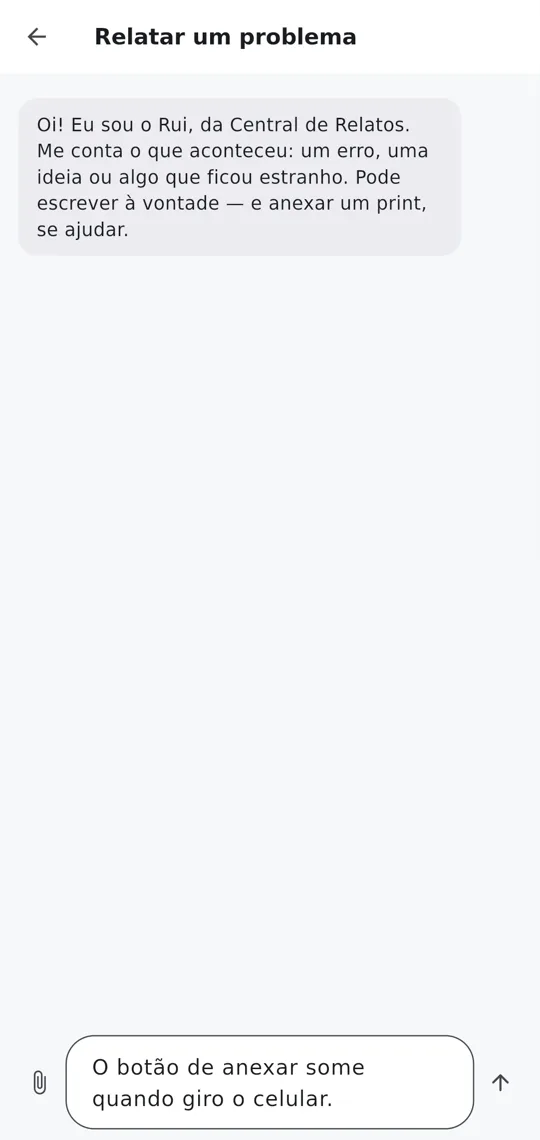
- Rui, from the Report Center, asks what happened. Write it your way in the Tell us what happened... field — a bug, an idea, or something that looked off.
- If it helps, tap Attach screenshot and choose the screen image.
- Rui may ask one or two questions to understand better. Answer in the same chat.
- Tap Register this report. A confirmation appears: "Report registered. The team will look at it — thanks for letting us know."

After you send it
- The team looks into it and, once the problem is fixed, you get a notice right in Cortex saying which version has the fix.
- New versions come with a list of what changed: see What's new and updates.
Real screenshots of the app, with a demo account and fictitious data.