
Synapses
A companion with a mascot, its own conversation, goals and routines that keeps working for you — in the cloud or on your computer.
A Synapse is a companion that lives on your screen and works for you. It has a name, a look, a conversation of its own, goals it keeps track of across conversations, and routines that run at the time you choose.

Create your Synapse
- In the conversation list, right below New chat, tap Create your Synapse.
- In Customize your Synapse, give it a name (up to 24 letters) and pick its look: a color, a character, or one of the 10 mascots. The preview on the right shows how it looks.
- Tap Save. It shows up with its mascot and name at the top of the list.

Chat and set goals
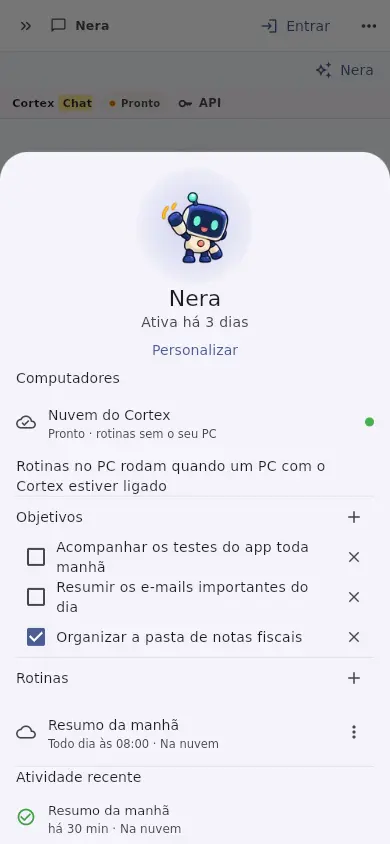
- Tap its name to open the conversation. On a computer, beside it you see Computers, Goals, Routines, Folders it can use, Recent activity, and Results; on a phone, tap its name at the top of the conversation.
- In Goals, tap + and write what it should keep an eye on (for example "follow the app tests every morning"). It takes the goals into account in every conversation and asks briefly when it needs a decision from you.
- Mark a goal as done when it is finished.
Routines: in the cloud or on your computer
- In Routines, tap +, write the title and what to do.
- Choose how often (every hour, every day, every week, or once) and the time.
- Choose where it runs: - In the cloud — runs on time even with your computer off. It only uses the AI (no files or programs) and the result lands in its conversation, with a notification on your phone. Use the ⋮ menu to Run now. - On this computer — runs in the Cortex app on this computer (Windows, macOS, or Linux) while it is open. Only this computer runs the routine.
The mascot on screen
The mascot shows what is going on: it thinks while the AI works, celebrates when it finishes, looks sad if something fails, holds a clock while a routine runs, and sleeps late at night. Tap it to open the Synapse; drag it to move it.
In Settings › Synapses you choose:
- Show in list — turns the item at the top of the list on or off.
- On-screen mascot — Off, Inside the app, On the desktop (Windows, macOS, and Linux: it stays on top of other windows), or Bubble (Android: it shows over other apps while Cortex is open in the background; Android asks for the "Display over other apps" permission). On iPhone and iPad it stays inside the app.
- Which mascot appears, if you have more than one Synapse.
Rename, pause, restart, or delete
Right-click (or tap and hold) its name in the list:
- Rename opens Customize your Synapse.
- Pause stops the routines until you resume.
- Restart clears the activity, the results, and the finished goals — the name and look stay.
- Delete erases its settings.
Privacy
Real screenshots of the app, with a demo account and fictitious data.